Smart Groups allow you to automatically assign Partner and Distributor Users to Groups based on specific criteria defined at the Organization level. This removes the need for manual User assignment to Manual Groups and ensures Users are always placed into the correct Groups as your Partner and Distributor records evolve.
This article walks you through how to replace an existing Manual Group with a Smart Group. If you'd like hands-on help or want to ensure a smooth transition with no access issues, feel free to reach out to our Support Team. We're happy to help!
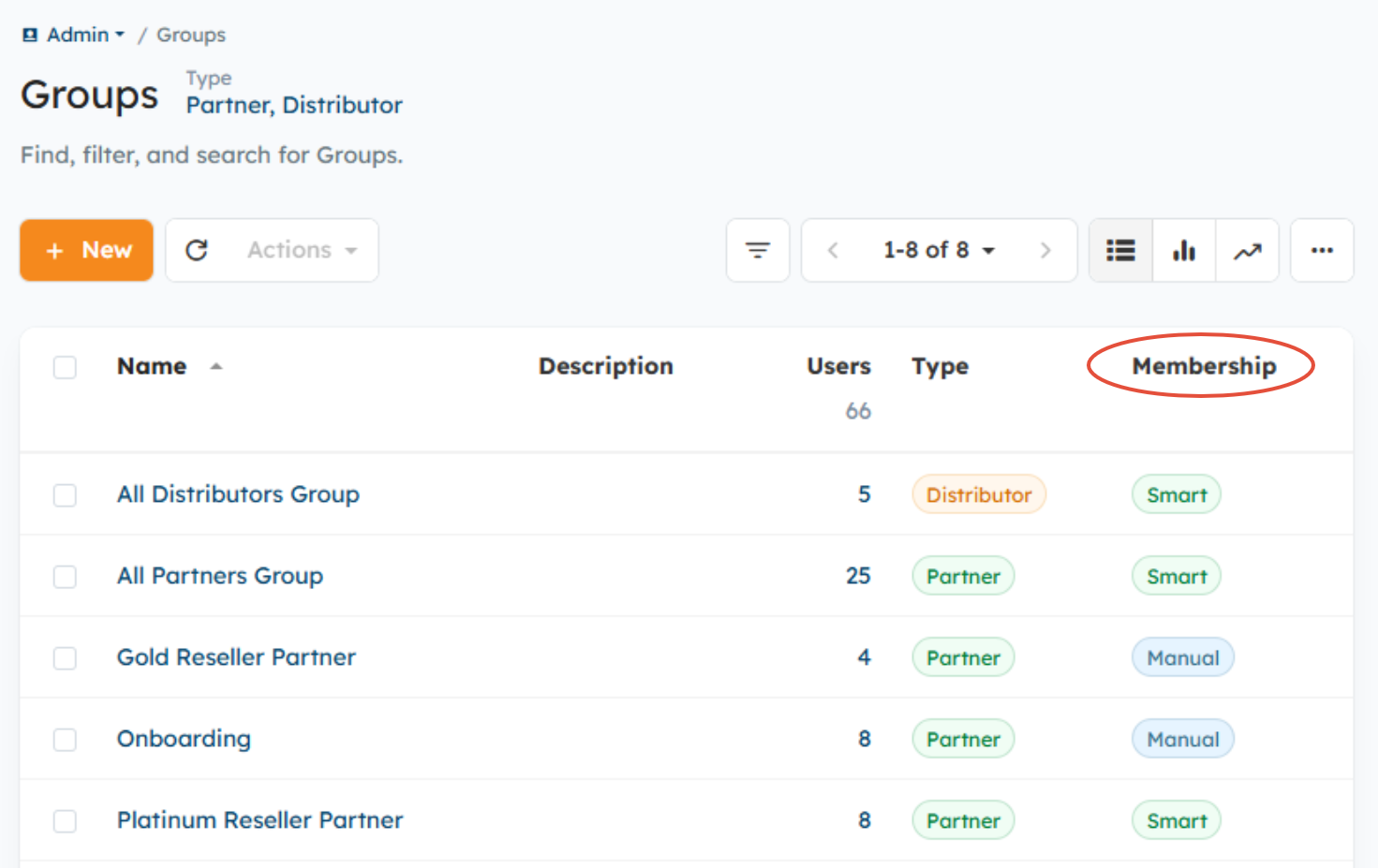
Supported Smart Group Criteria
Smart Groups can auto-assign Users based on:
- Partner Type (Partner Groups only)
- Country
- Region
- Any custom field added to:
- Partner Organizations
- Distributor Organizations
- User records
Smart Groups automatically evaluate these fields and assign Users to the appropriate Group(s) when the data matches the criteria you set.
Before You Begin: Verify Your Data
Run Reports to Validate Criteria
Confirm that the fields you plan to use as Smart Group rules are populated correctly. Incorrect or missing values will prevent Users from being auto-assigned. Validating your data up front ensures smooth conversion and avoids access issues later, as Users can't be manually assigned to Smart Groups.
Example:
If you plan to create a Smart Group for Users under Partner Organizations where Partner Type = Platinum Reseller, verify that all relevant Partner Organization records have “Platinum Reseller” selected.
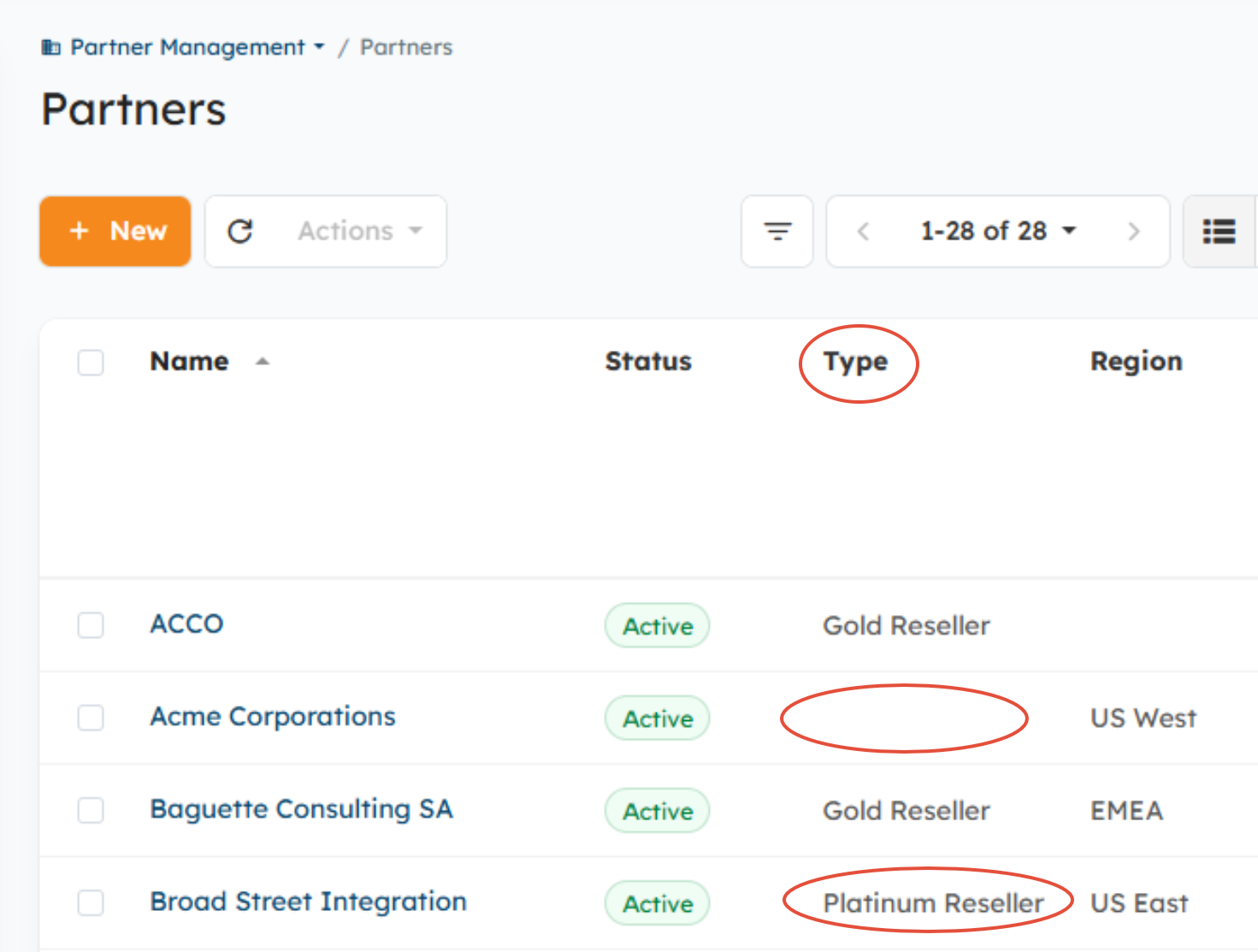
Step 1: Create the Smart Group
Once you’ve verified the underlying Organization data:
- Go to Admin > Groups.
- Click New > Partner Group or Distributor Group.
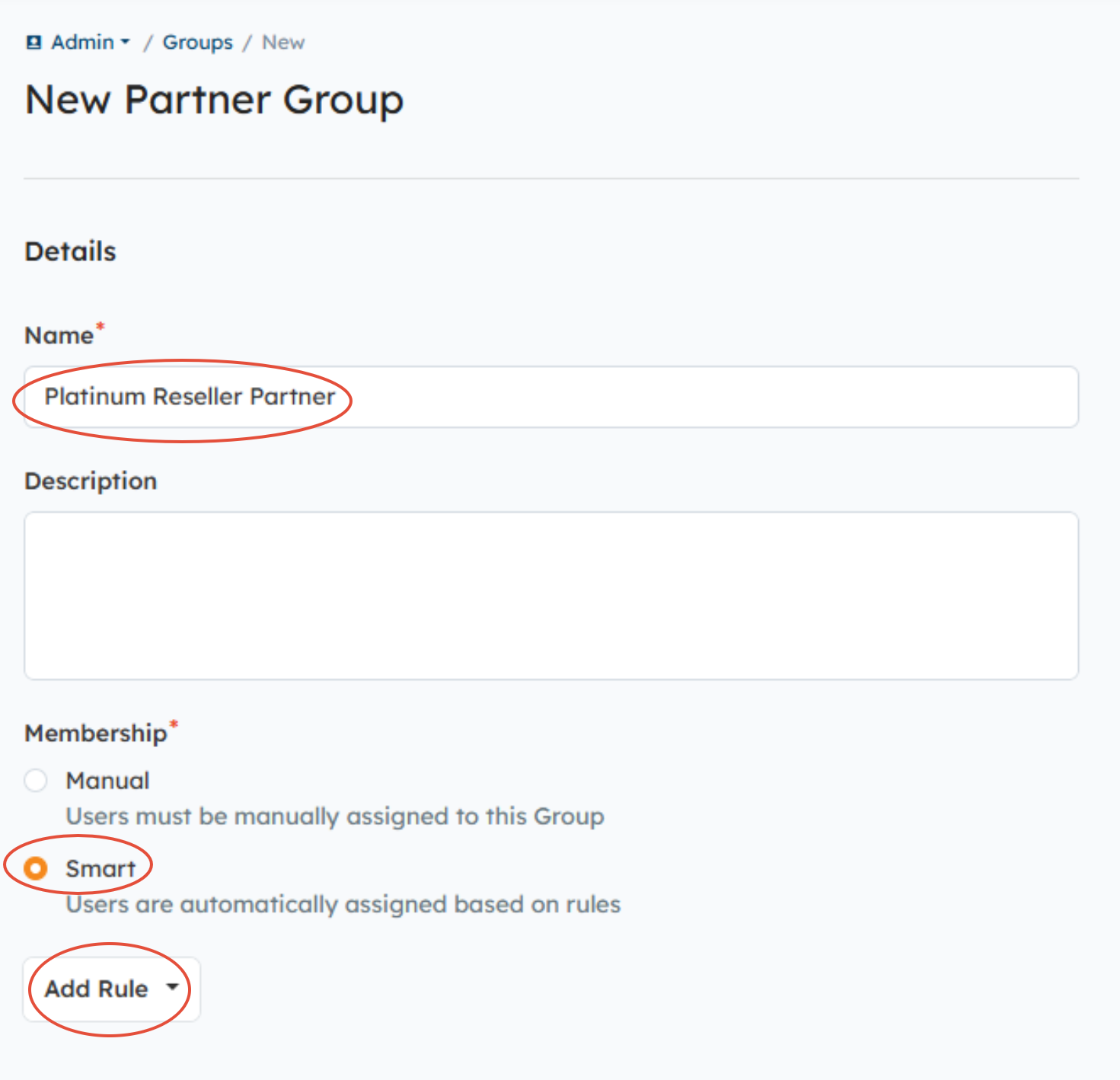
- Enter a Group title and optional description. The title should be different from the name of the Manual Group. For example, if the Manual Group is called “Platinum Reseller,” name the Smart Group “Platinum Reseller Partner.”
- Select Smart > Add Rule and configure your membership criteria
- Select the appropriate Group-level permissions > Save.
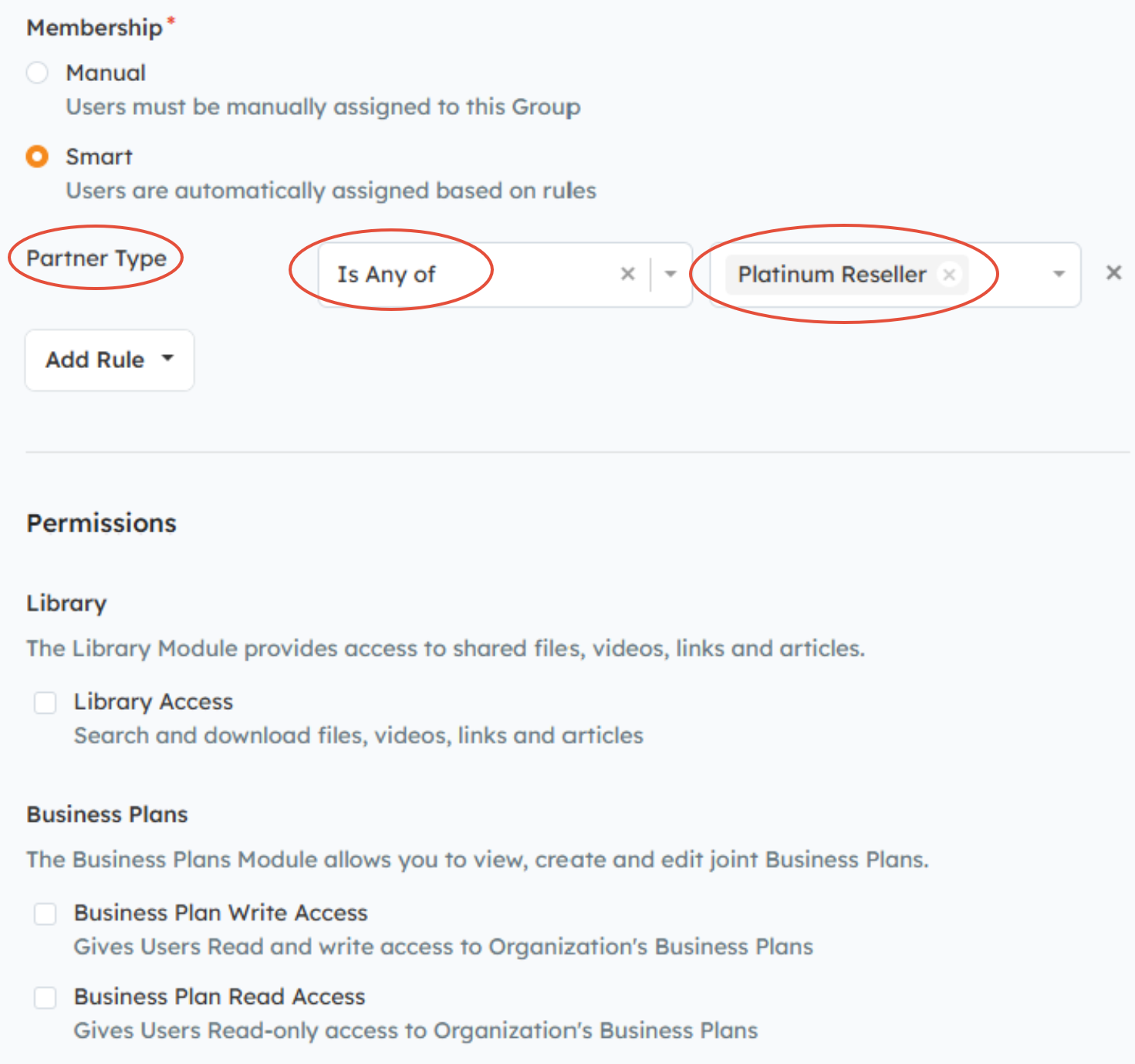
After saving, the system will automatically populate the Smart Group with Users who match the criteria.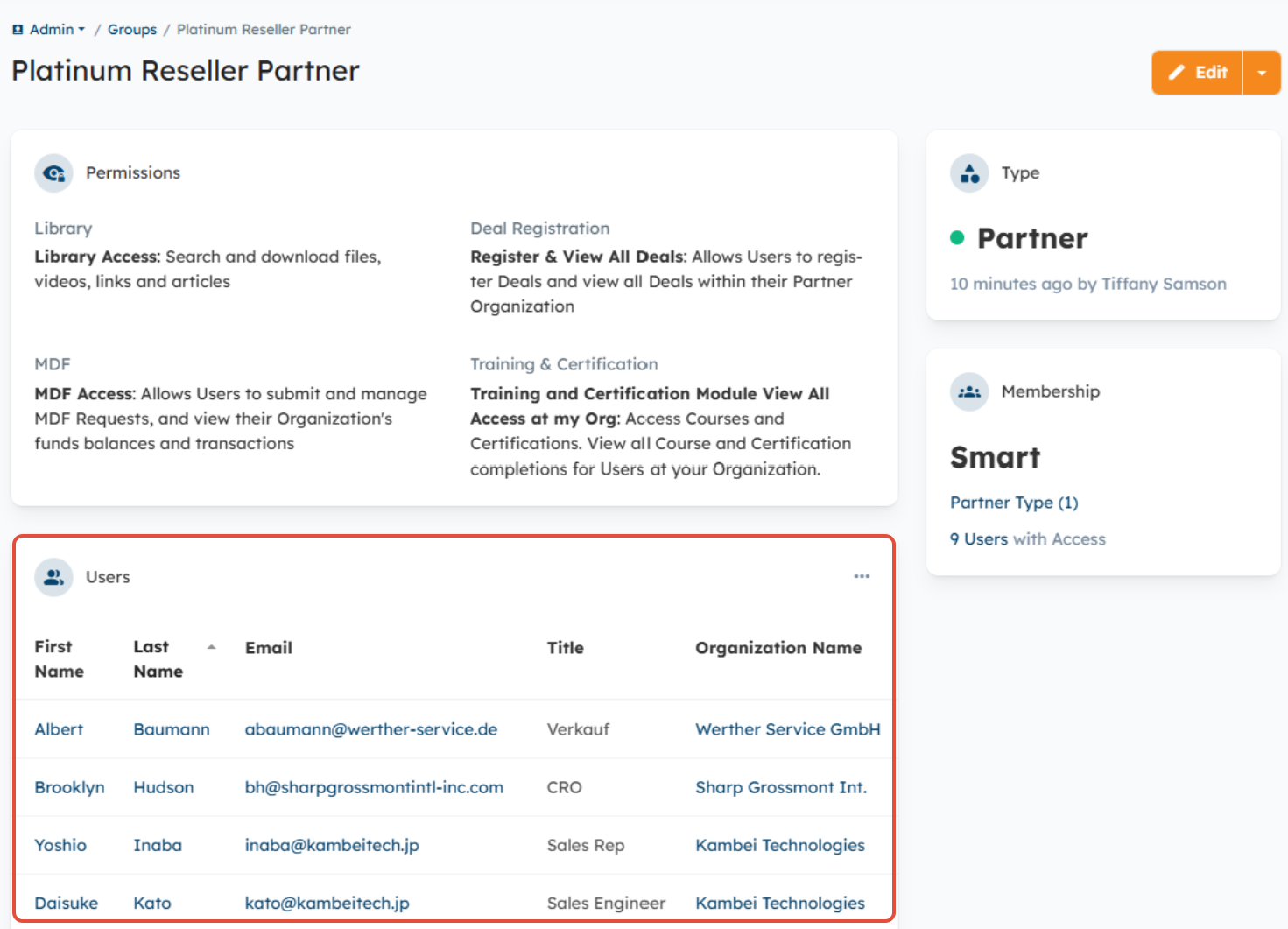
Step 2: Assign Smart Groups to Content in Bulk
To ensure Users retain access to the content tied to the Manual Group once it's deleted, you’ll assign the new Smart Group to the content currently assigned to the Manual Group.
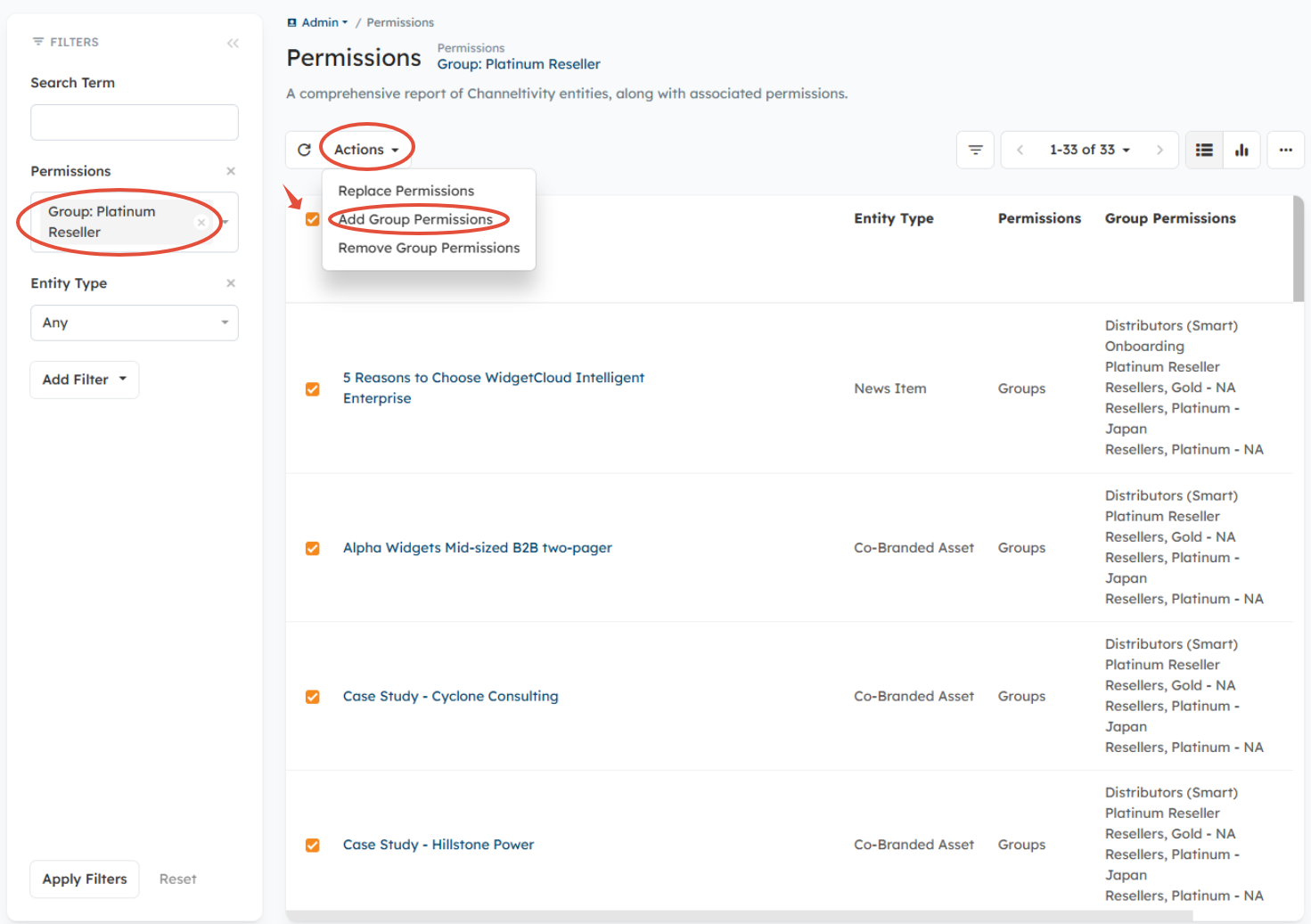
- Go to Admin > Permissions.
- Use the Permissions Report to view all content and which Groups are assigned.
- You can add/remove columns and filter by the Manual Group to locate all relevant items.
- Select the top checkbox to bulk-select all visible items > Actions > Add Group Permissions.
- Select the new Smart Group from the dropdown menu > Add.
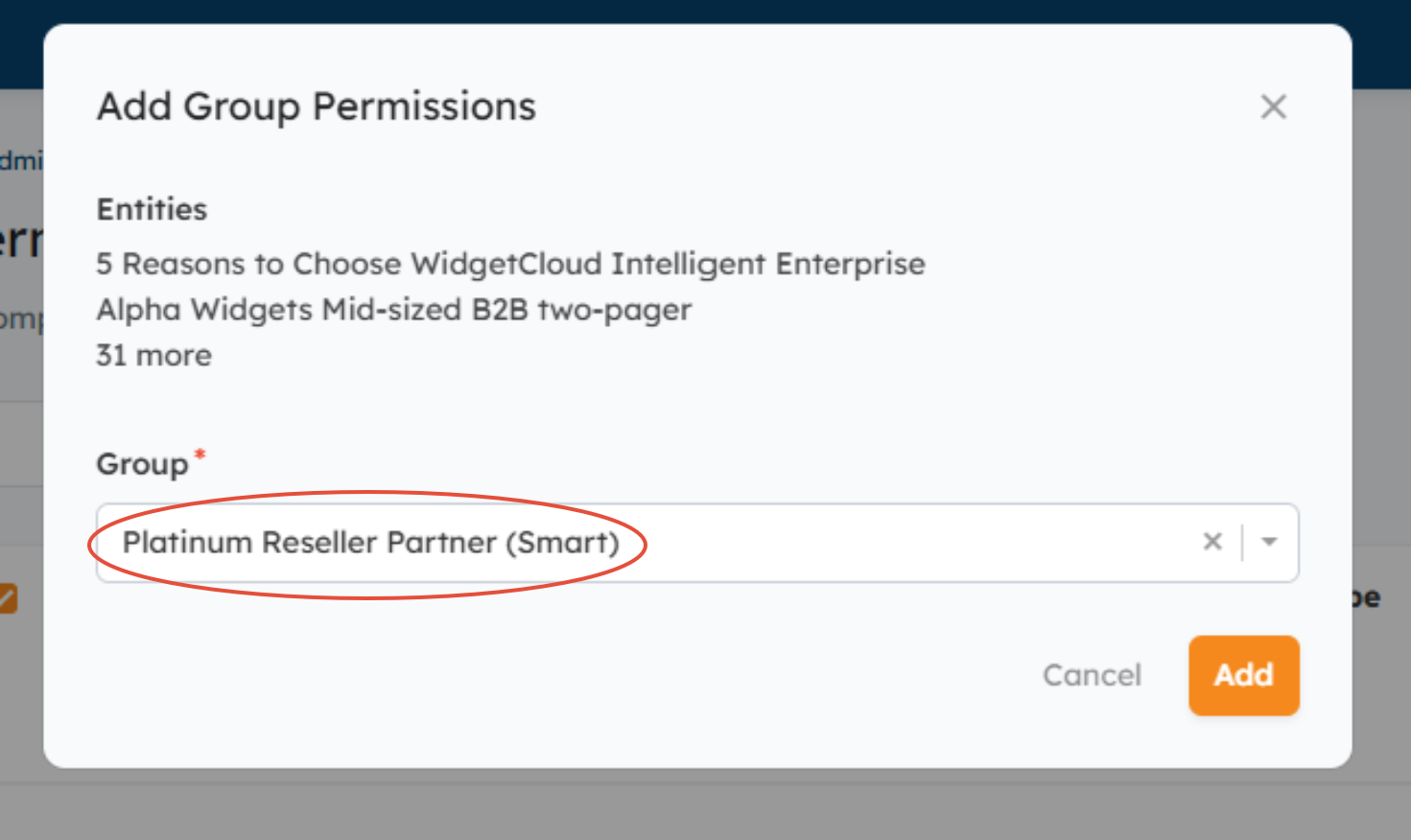
This ensures Users do not lose access once the Manual Group is deleted.
Step 3: Delete the Manual Group
After confirming all permissions have been assigned:
- Go to Admin > Groups.
- Click on the title of the Manual Group to view its details.
- Click the caret icon next to Edit > Delete.
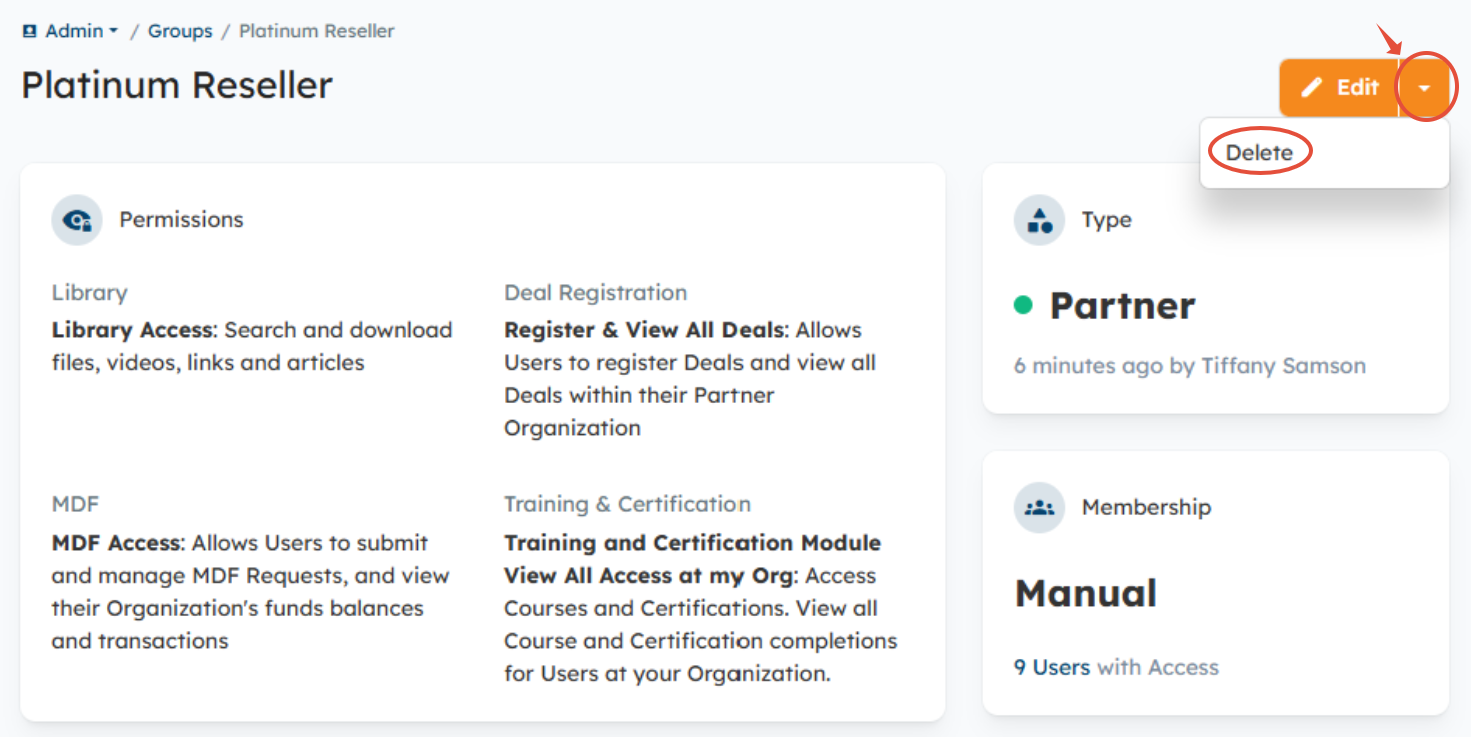
Once deleted, only the Smart Group remains, and Users will now be dynamically assigned to the Group based on the defined criteria.
Creating/Approving Users Going Forward
When creating a new User, approving a User Request, or promoting a Contact to a User moving forward, if you do not manually assign the User to any remaining Manual Groups, the system will prompt you to confirm that you want to proceed without assigning the User to any Manual Groups, and you'll select the "Proceed without adding Groups" button.
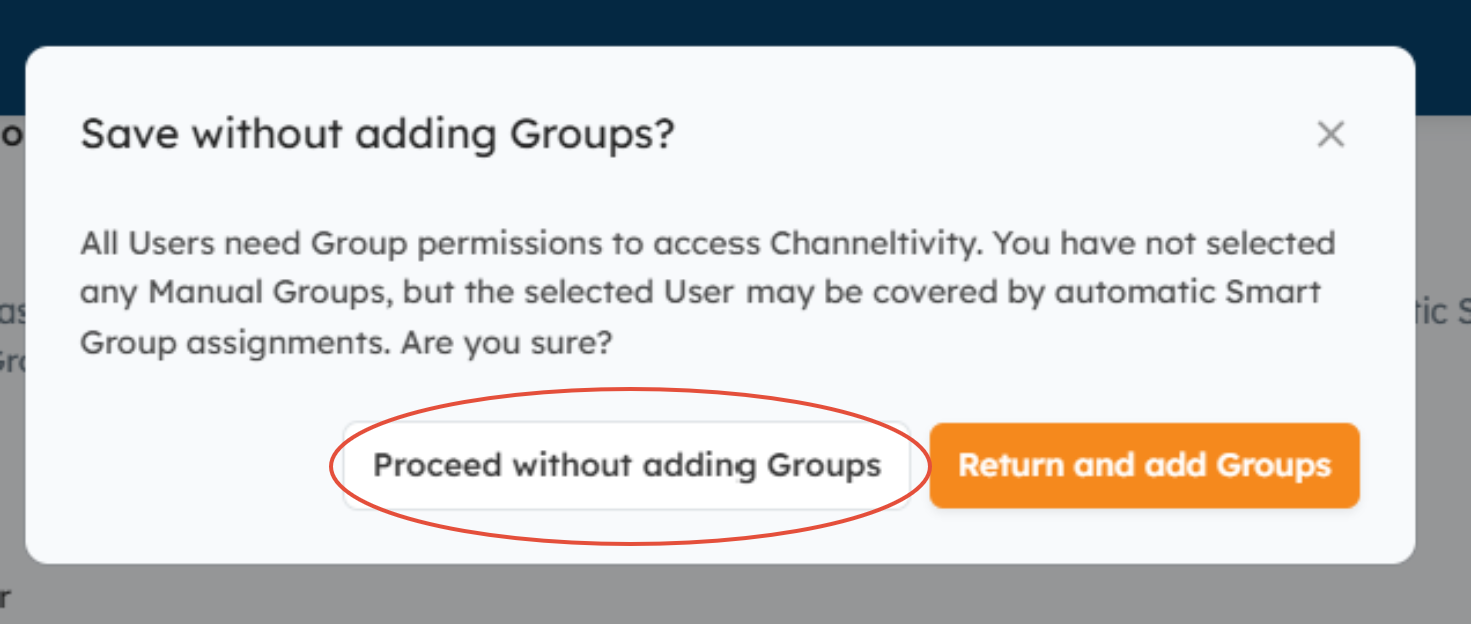
Any User who isn’t assigned to a Manual Group or Smart Group will appear in the bell icon in the top-right corner for Admin review. This helps ensure Admins can quickly identify Users who either need to be added to a Manual Group or whose Organization/User data needs updating so they can be assigned to a Smart Group automatically. 
FAQs
What is the difference between a Manual Group and a Smart Group?
- Manual Groups require administrators to assign Users manually. Smart Groups automatically assign Partner and Distributor Users when their Organization or User data matches the Group’s defined criteria.
What criteria can I use to create a Smart Group?
- Smart Groups can use Partner Type, Country, Region, and custom fields on Partner Organizations, Distributor Organizations, or User records.
Can I manually add a User to a Smart Group?
- No. Users are automatically assigned based on the Smart Group’s criteria, so the underlying Organization or User data must match the Group rules.
What should I check before replacing a Manual Group with a Smart Group?
- Verify that the fields you plan to use for your Smart Group rules are populated correctly. Missing or incorrect data can prevent Users from being automatically assigned to the new Group.
How do I make sure Users do not lose access when I replace a Manual Group?
- Before deleting the Manual Group, use the Permissions Report to identify content assigned to it and bulk-add the new Smart Group to that content.
When should I delete the old Manual Group?
- Delete the Manual Group only after you have confirmed that the new Smart Group contains the correct Users and that the appropriate content permissions have been assigned to it.
What happens if a User is not assigned to a Manual Group or Smart Group?
- The User will appear in the Admin notification area so an administrator can review whether the User needs to be added to a Manual Group or whether their data needs to be updated to qualify for a Smart Group.
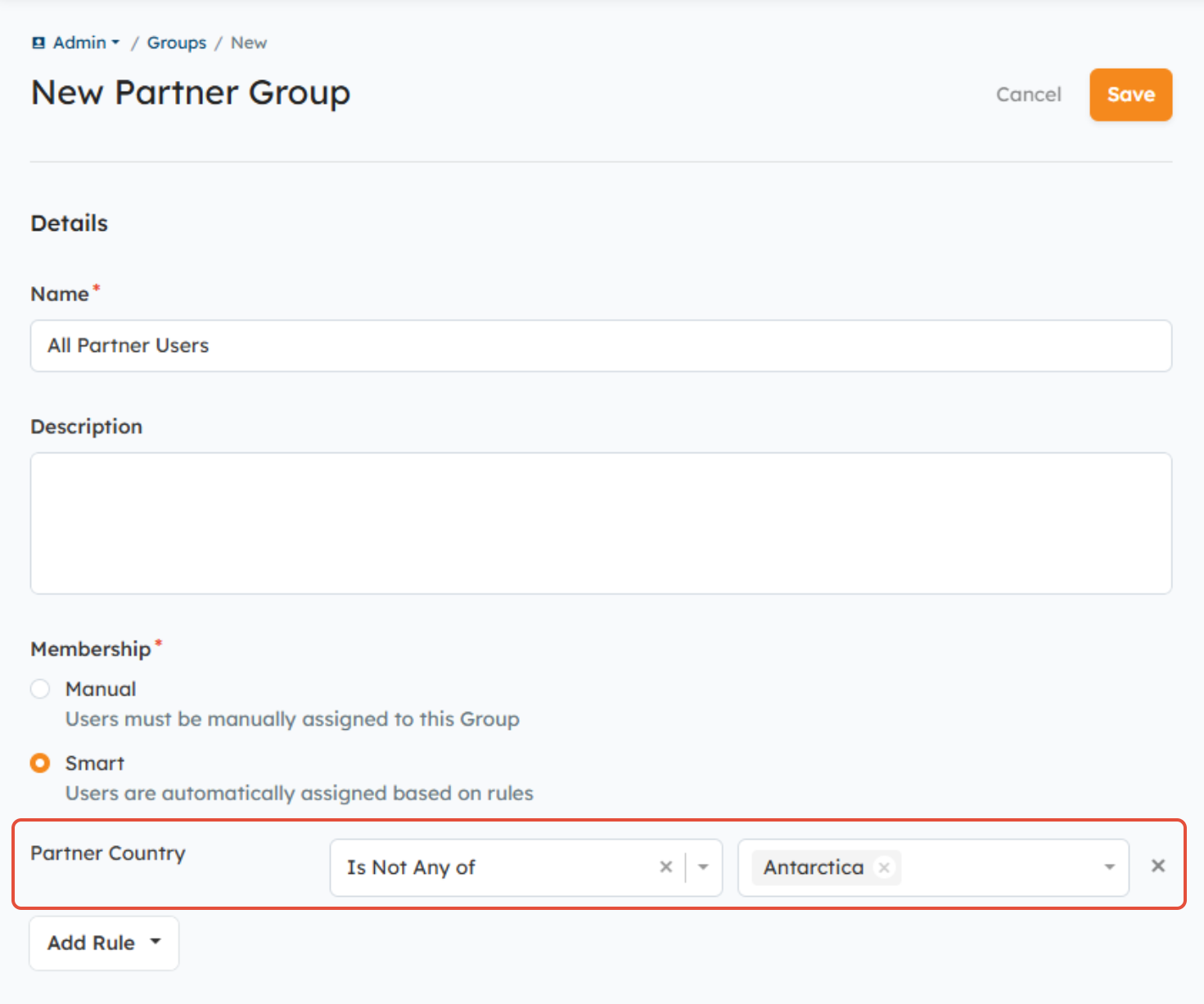
What criteria do I use for a Smart Group to ensure all Partner Users are assigned to that Group by default?
- You'll use the following criteria for a Partner/Distributor Group to which all Users should be assigned by default:
- Country = Is Not Any of = Antarctica
Related Links:
What are Smart Groups & Smart Permissions and When Do I Use Them?
What is the Permissions Report?
Was this article helpful?
That’s Great!
Thank you for your feedback
Sorry! We couldn't be helpful
Thank you for your feedback
Feedback sent
We appreciate your effort and will try to fix the article