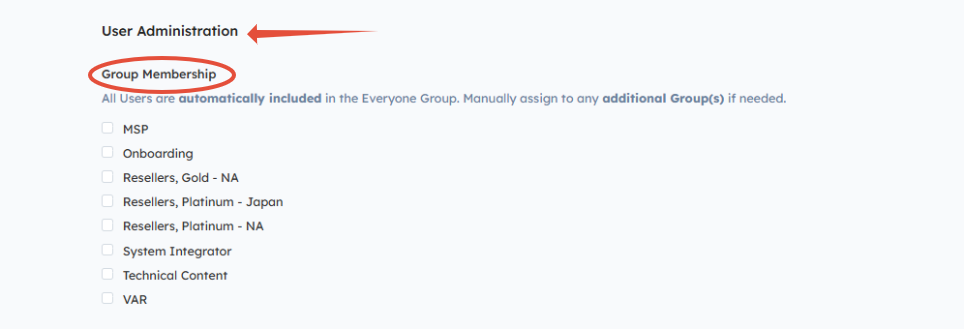
Important: Every User must belong to at least one Group. Group membership can be assigned automatically through Smart Groups or manually by a System Admin.
Before You Begin:
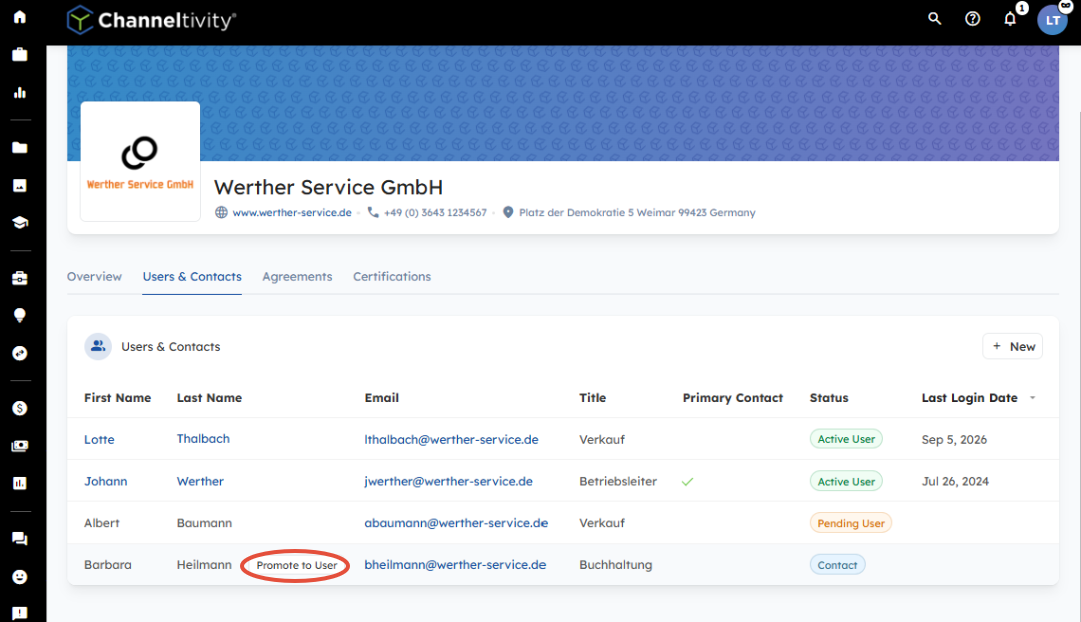
- A Contact is a person associated with an Organization who does not have access to Channeltivity. Contacts associated with Active Partner or Distributor Organizations can be promoted to Users. Contacts associated with Prospective and Inactive Organizations must first be moved to Active status.
- For more information, see Users and Contacts
- NOTE: Contacts promoted to Users by Internal Non-System Admins will be automatically assigned to Smart Groups based on their profile data.
Promote an Individual Contact:
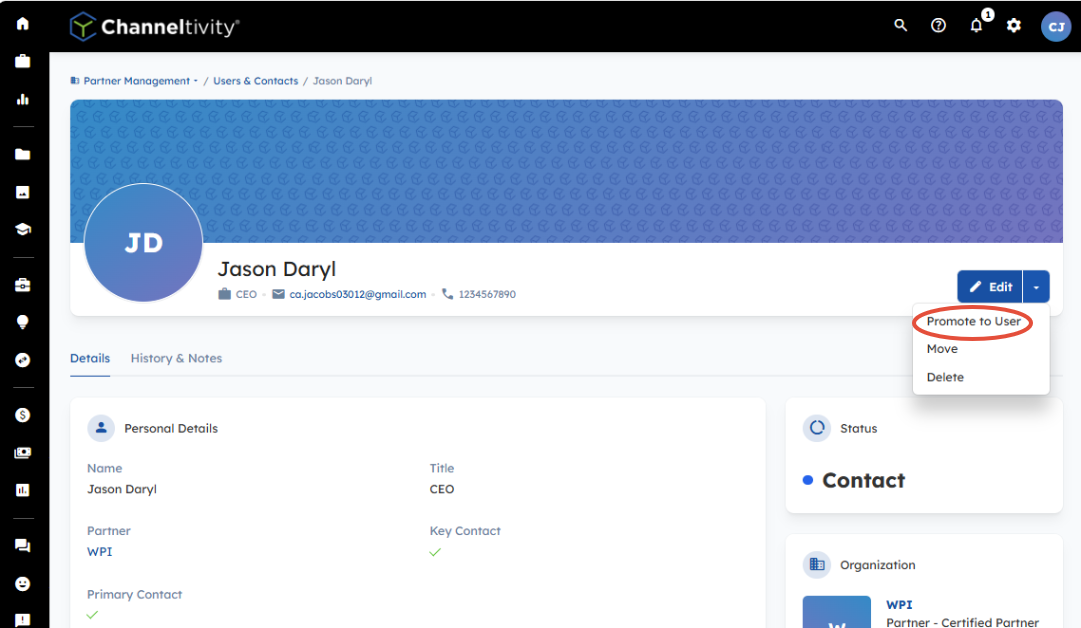
Open the Contact's profile (Partner Management > Users & Contacts > Select the Contact's name)
- Select dropdown arrow next to Edit > Promote to User
- In User Administration, assign the appropriate Group Membership, if needed.
- Select Promote
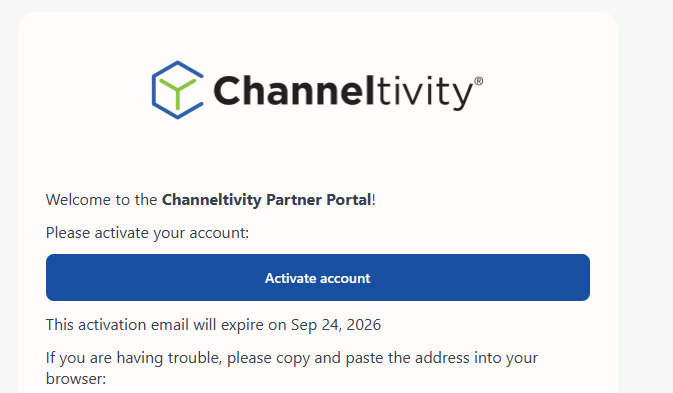
- The User will receive an email invitation with a unique link to activate their account
Promote Partner Contacts to Users in Bulk:
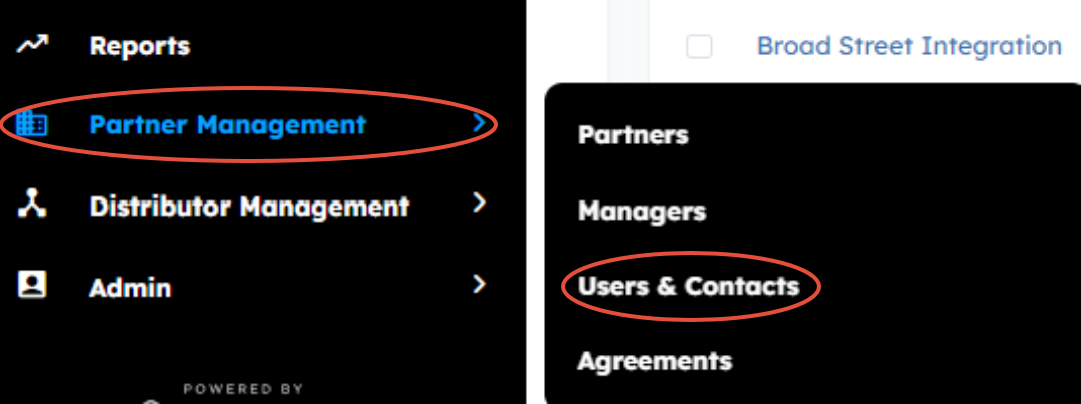
- Go to Partner Management > Users & Contacts in the left navigation menu.
- Filter the list to show Contacts from Active Partner Organizations. Add filters such as Organization, Partner Type, or Region as needed.
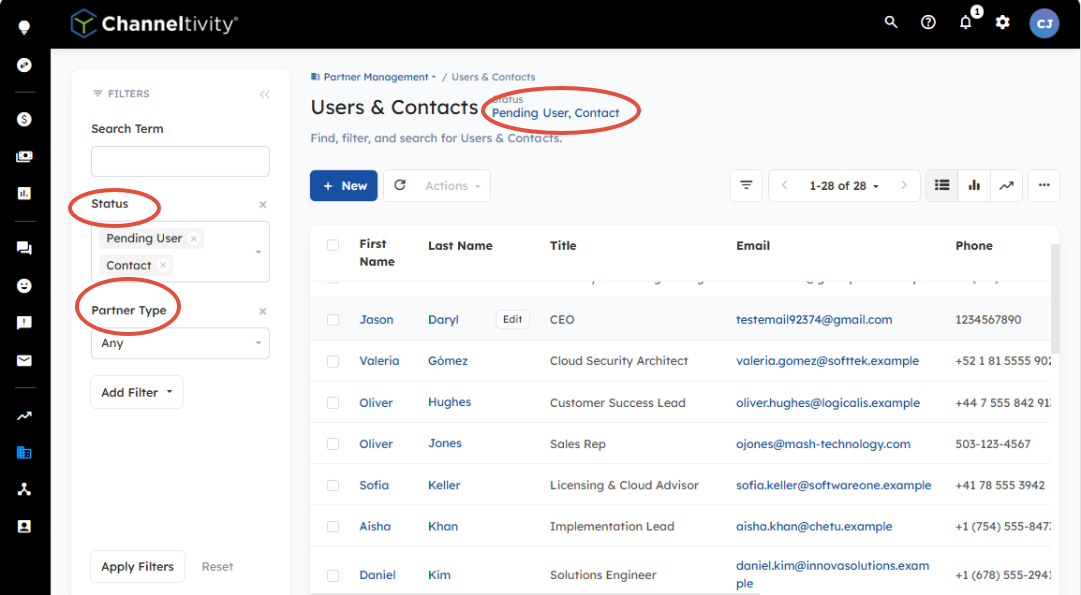
- Select the checkboxes next to the Contacts you want to promote to Users, or select the top checkbox to select all the Contacts in your view.
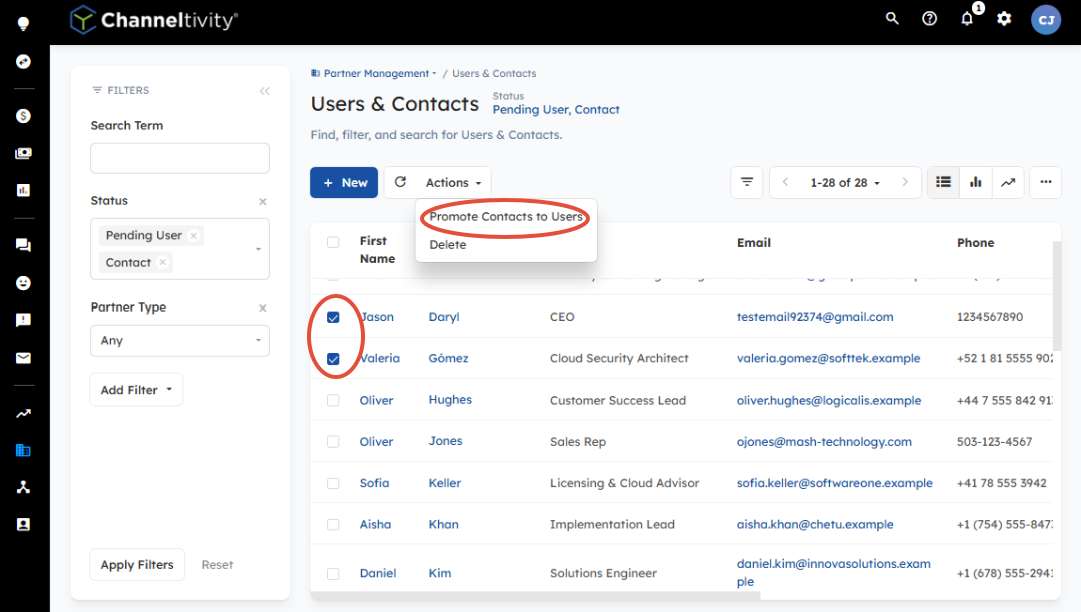
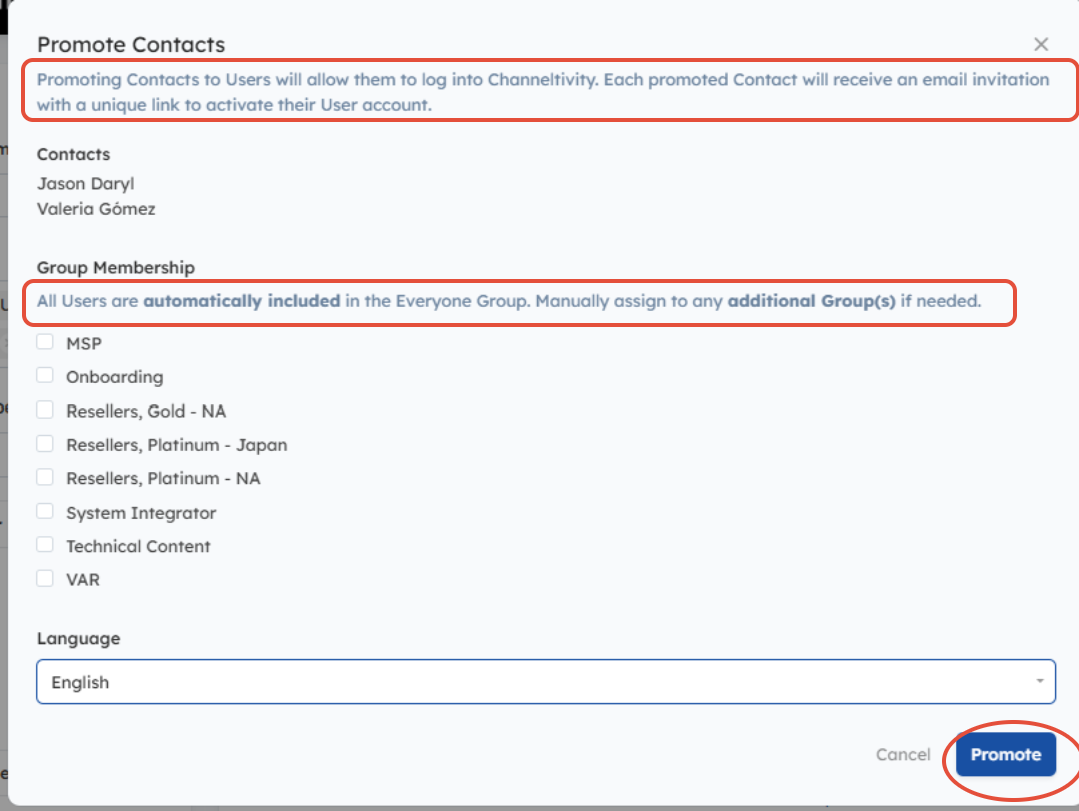
4. Select Promote Contacts to Users, assign them to the appropriate Group(s), and select Promote
Promote Distributor Contacts to Users in Bulk:
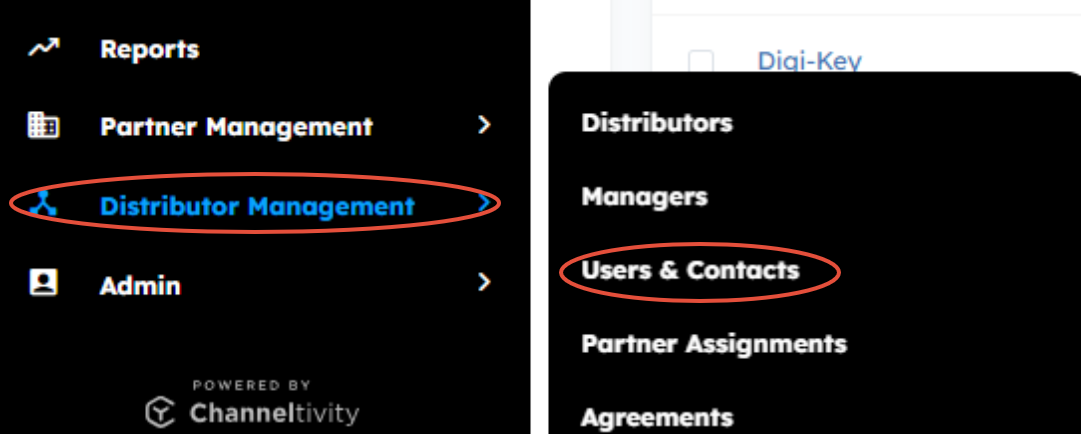
- Go to Distributor Management > Users & Contacts, then follow the instructions in Steps 2 - 4 in the Partner bulk-promotion process above.
Partner & Distributor Self-Management:
Primary Contacts can promote Contacts within their Organization by selecting their profile in the top-right corner of the portal and going to Manage Users. From there, select Promote Contact to User
For more information, see Partner & Distributor User Self-Management.
Related Documentation:
- Users and Contacts
- Partner & Distributor User Self-Management
- I'm trying to promote a Contact to a User, but I keep getting an error message. What's going on?
- What are Groups, and How Do I Use Them to Set Permissions in my Partner Portal?
Was this article helpful?
That’s Great!
Thank you for your feedback
Sorry! We couldn't be helpful
Thank you for your feedback
Feedback sent
We appreciate your effort and will try to fix the article