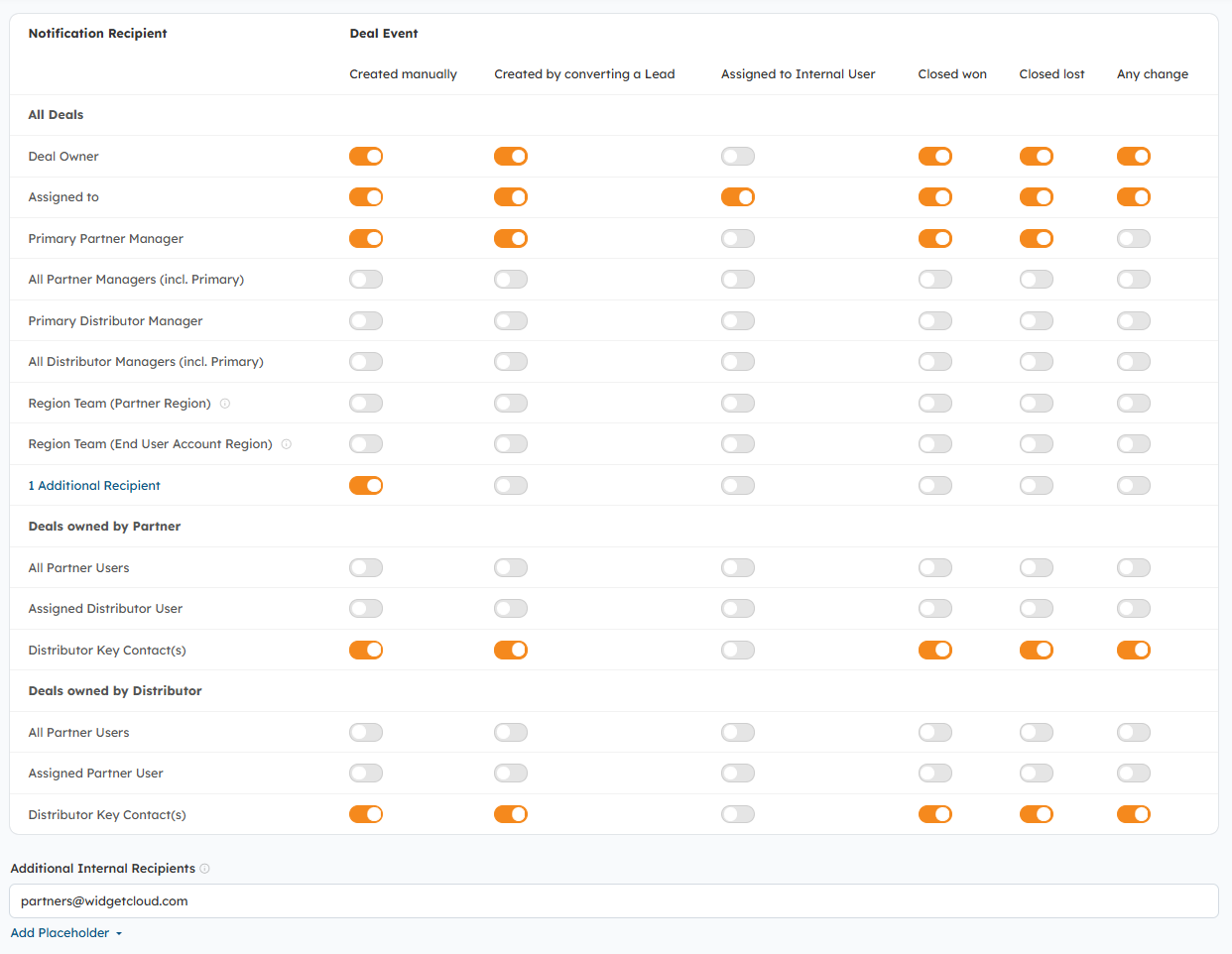
Determine the Users that will receive emails about various Deal events in the Deal Email Notifications settings. To adjust these settings go to Settings >Deal Registration > Deal Email Notifications. Select the Deal event (on the right) that you want each recipient (listed on the left) to be notified about.
Note: Users are not notified about their own actions/updates, so when a User registers or updates a Deal, they will not receive a confirmation email.
- Deal Owner - Partner User the Deal is assigned to
- Assigned to- Internal User the Deal is assigned to
- Primary Partner Manager - Internal User assigned to the Partner Organization as the Primary Manager
- All Partner Managers - Internal Users assigned to the Partner Organization as Managers, including the Primary Manager
- Region Team (Partner Region) - Based on the location of the Partner Organization, Internal Users will be notified about Deals registered by Partners located in the Region(s) they are assigned to as Manager.
- Region Team (End User Account Region) - Based on the location of the end-user/customer Account, Internal Users will be notified about Deals that have end-user Accounts located in the Region(s) they are assigned to as Manager.
- All Partner Users - This functionality allows you to notify all Partner Users at a Partner Organization about Deals assigned to their Organization and Users.
- Additional Internal Recipients - This functionality will notify any of the email addresses in the "Additional Internal Recipients" field about the events (related to all Deals) based on the events you select in the matrix.
Portals with the Distributor module enabled will include the following additional recipients:
- Primary Distributor Manager - Internal User assigned to the Distributor Organization as the Primary Manager
- All Distributor Managers - Internal Users assigned to the Distributor Organization as Managers, including the Primary Manager.
- Assigned Distributor User - The Distributor User the Deal is assigned to, if any.
- Assigned Partner User - The Partner User the Deal is assigned to, if any.
- Distributor Key Contact - Distributor Users marked as Key Contacts at the Deal's assigned Distributor Organization.
You can also customize the subject lines of the Internal, Partner, and Distributor Deal Email Notifications using Placeholders. Use the "Add Placeholder" links to include additional information in the Deal's subject line, such as Region, Stage, or Amount. 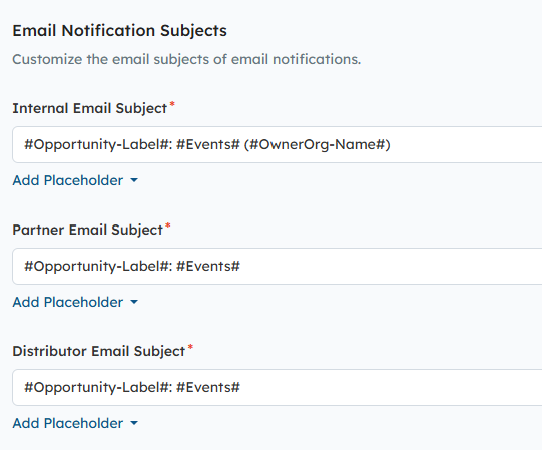
Configure Automatic Deal Email Reminders (optional):
Keep Partners and Internal Users engaged using Automatic Email Reminders to notify them about the following:
- Deal Actions Required
- Expiring Deals
- Expired Deals
- Deals Not Updated
To configure and enable the Automatic Email Reminders, go to Settings > Email > Automatic Email Reminders. Hover over the Reminder you wish to enable and click the "Actions" button that appears to the right > to enable, disable, preview, and modify the Reminder. 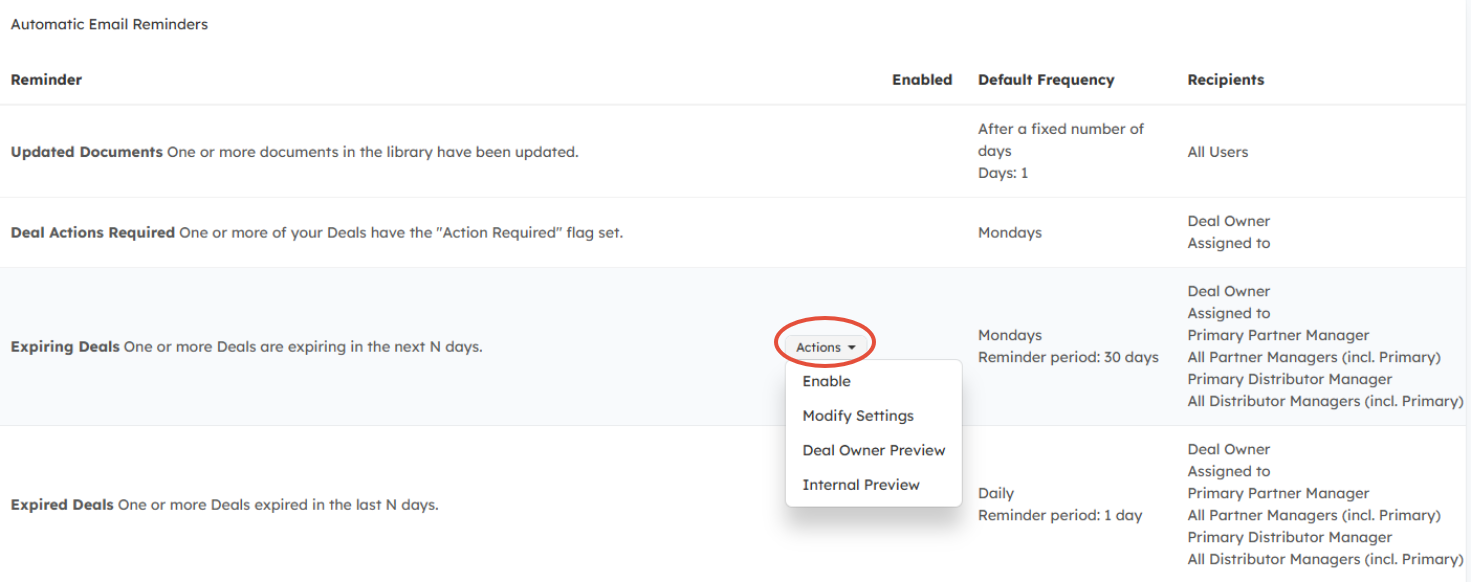
Related Articles:
Was this article helpful?
That’s Great!
Thank you for your feedback
Sorry! We couldn't be helpful
Thank you for your feedback
Feedback sent
We appreciate your effort and will try to fix the article