What is User Impersonation?
User Impersonation allows Administrators to access and operate Channeltivity as if they were logged in as that User.
Why is this feature important?
This feature is useful when testing permissions and content for Non-Admins such as Partners and Distributors, as well as Non-Admin Internal Users. For example, if a Partner User has encountered an issue while using the system, an Administrator can use the User Impersonation feature to troubleshoot.
How do I impersonate a User?
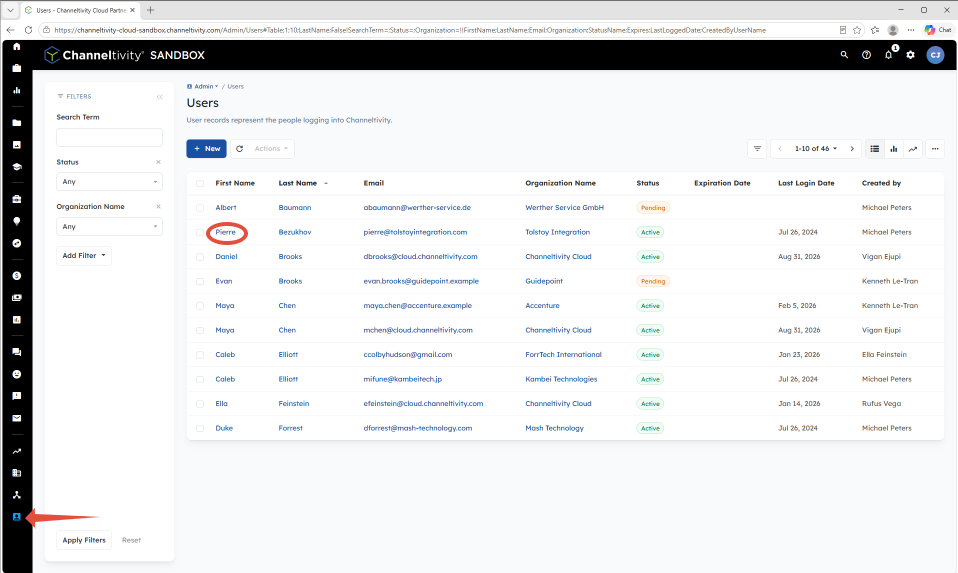
Go to the "Admin" tab in the left navigation menu and select "Users" from the sub-navigation menu. You'll then click on the First or Last Name of the User you wish to impersonate to view their Profile.
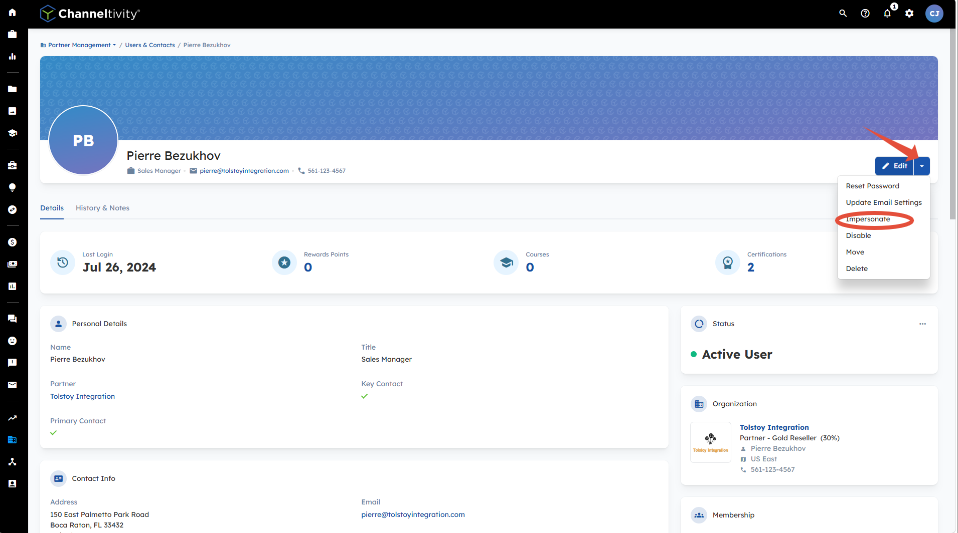
Click the caret icon(v) in the top right corner next to the "Edit" button > Impersonate to assume the User’s identity.
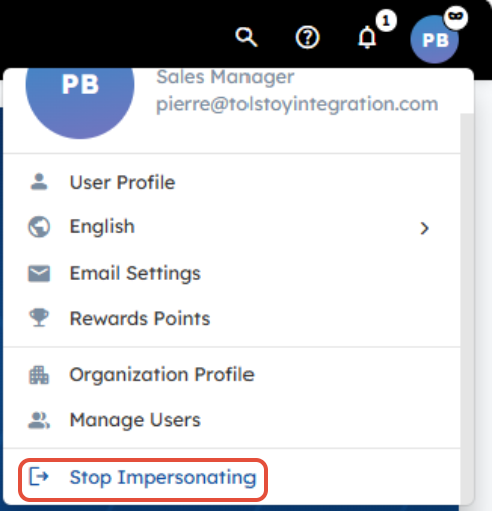
You will then be taken to the User’s homepage, where you'll see the Impersonation badge icon attached to the User's profile in the top right, confirming that you are impersonating the User.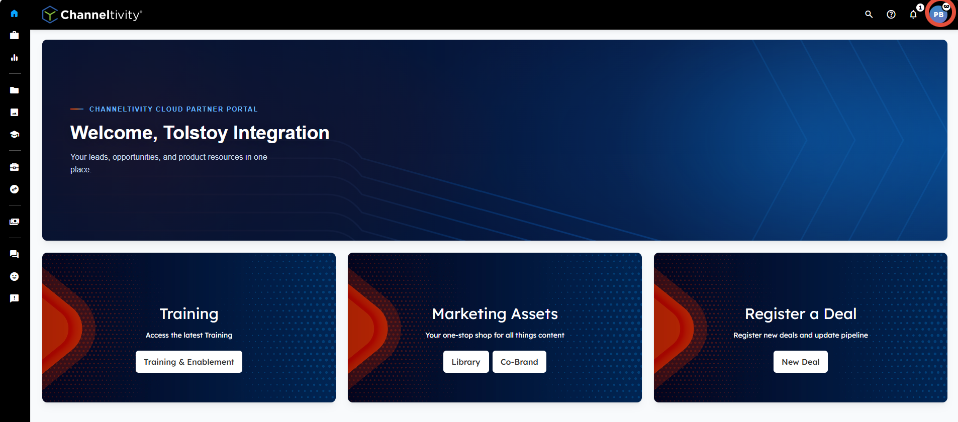
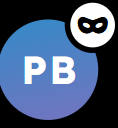
To exit Impersonation and return to the system as yourself, click on the User's profile in the top right > Stop Impersonating.
Who can impersonate Users?
Admin Users are the only Users who can impersonate Users.
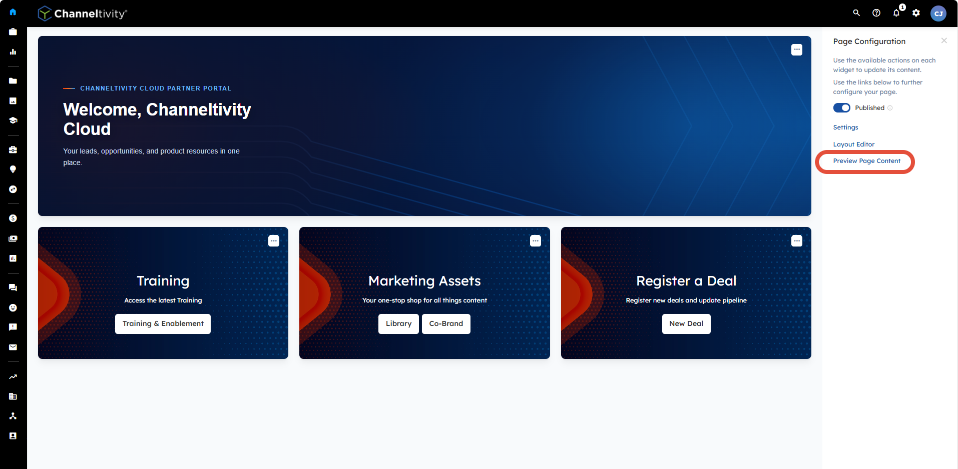
Can I impersonate Users using the "Preview Page Content" option in the home page's Page Configuration settings?
No, the Preview Page Content functionality in the home page's Page Configuration settings only allows you to view content on the home page as a specific User. It does NOT apply to other areas of the portal.
Was this article helpful?
That’s Great!
Thank you for your feedback
Sorry! We couldn't be helpful
Thank you for your feedback
Feedback sent
We appreciate your effort and will try to fix the article