Groups are used to give Users access permissions to content and functionality within Channeltivity. Before you get started creating Groups, make sure to check out this article to learn all about Groups and best practices for creating a good Group permissions structure.
Creating a Group:
To create a Group, go to Admin and select Groups from the Admin menu in the left navigation menu. This will take you to the Groups page.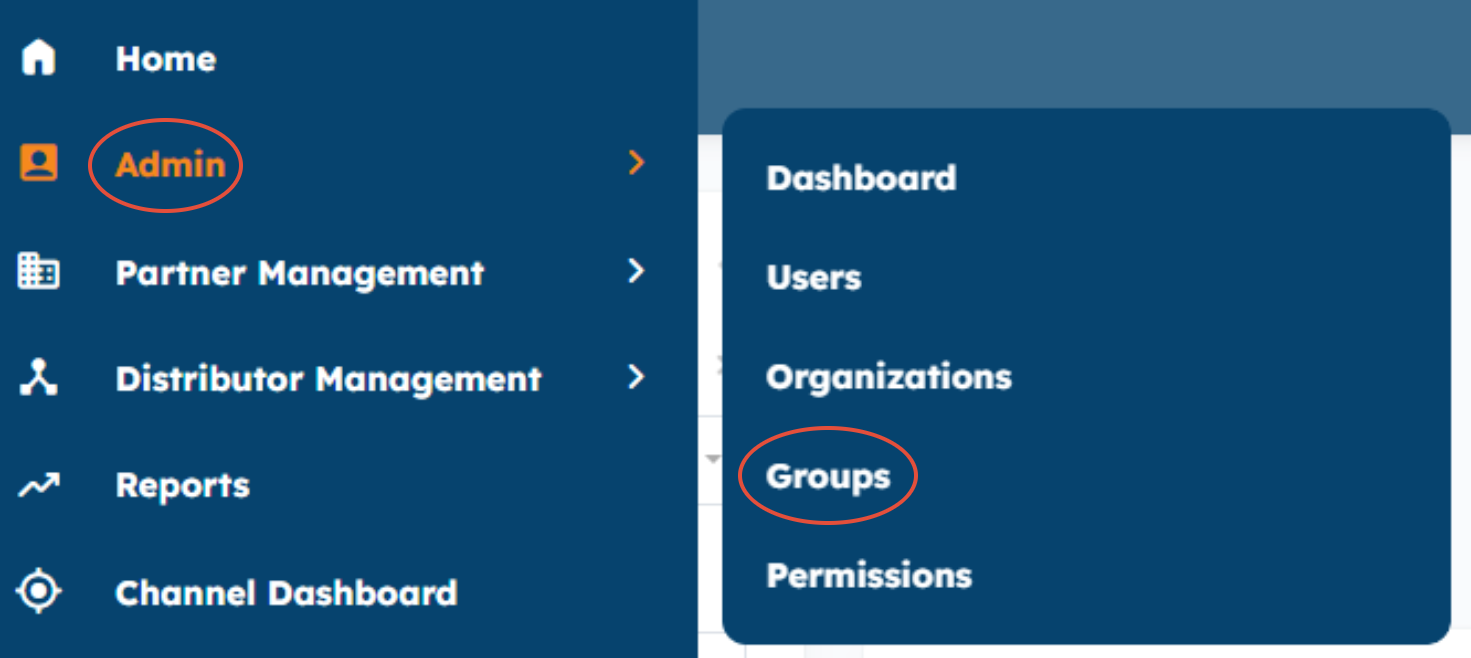
Left Main Navigation Menu
The Groups page, shows how many Users exist in each Group, how many resources are available for each Group, the Group type, as well as the membership type.
You can use the "New" button to create new Partner, Internal, and Distributor Groups. 
Groups Page
- On the new Group screen, name your Group
- Give it a description
- Make a selection on how Users will be assigned to the Group with the following Membership options:
- Manual: require that each User is manually assigned to the Group by an Administrator. This can be done in bulk, but still requires effort. If possible, we recommend using Smart Groups instead.
- Smart: automate the assignment of Users based on rules that you define. In the example screenshot below, any Users that are members of Partners of the "Gold Reseller" type will be automatically assigned to this Group. In general, we recommend using Smart Groups to minimize administrative overhead.
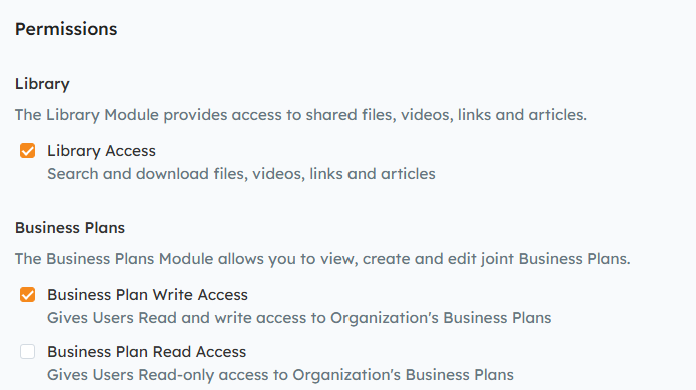
- Scroll down the page to select the appropriate permission/access for each module. Group permissions are defined here.
- Click Save to save your changes
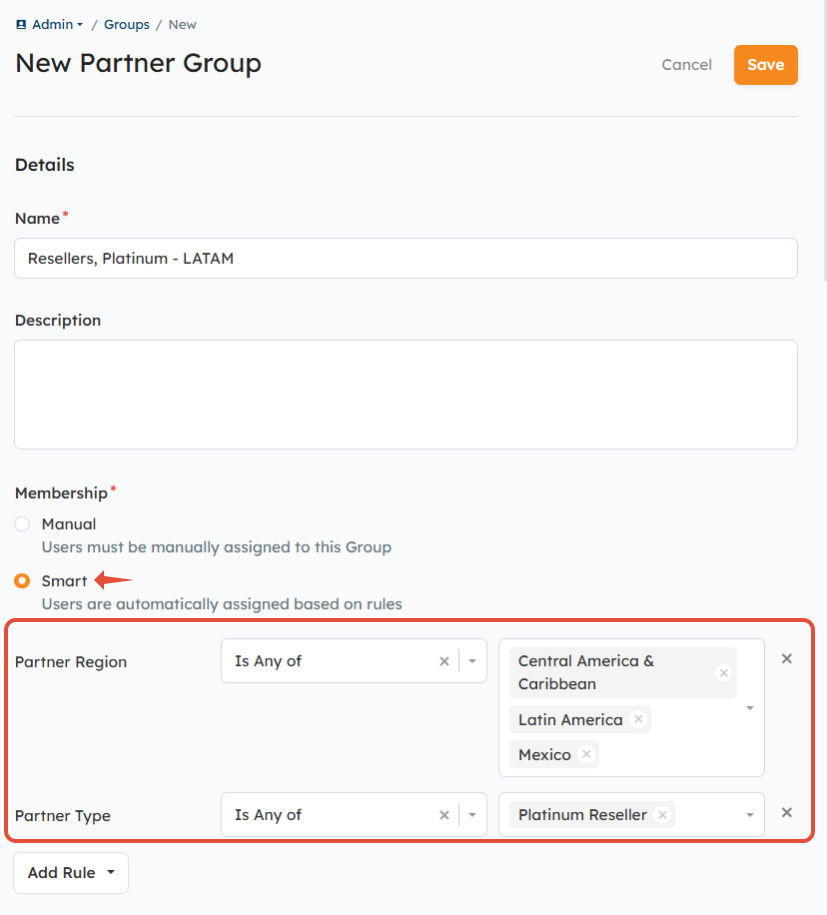 New Partner Group Screen
Once you've created your Groups, you can configure the Library.
Related Articles:
- Everything about Groups and how to use them
- How do I Edit a Group?
- Group Permissions Defined
- How to set up Deal Registration Region Permissions
- Adding Folders and Uploading Content to the Library
- How do I set Partner Portal Content Access & Permissions?
Was this article helpful?
That’s Great!
Thank you for your feedback
Sorry! We couldn't be helpful
Thank you for your feedback
Feedback sent
We appreciate your effort and will try to fix the article