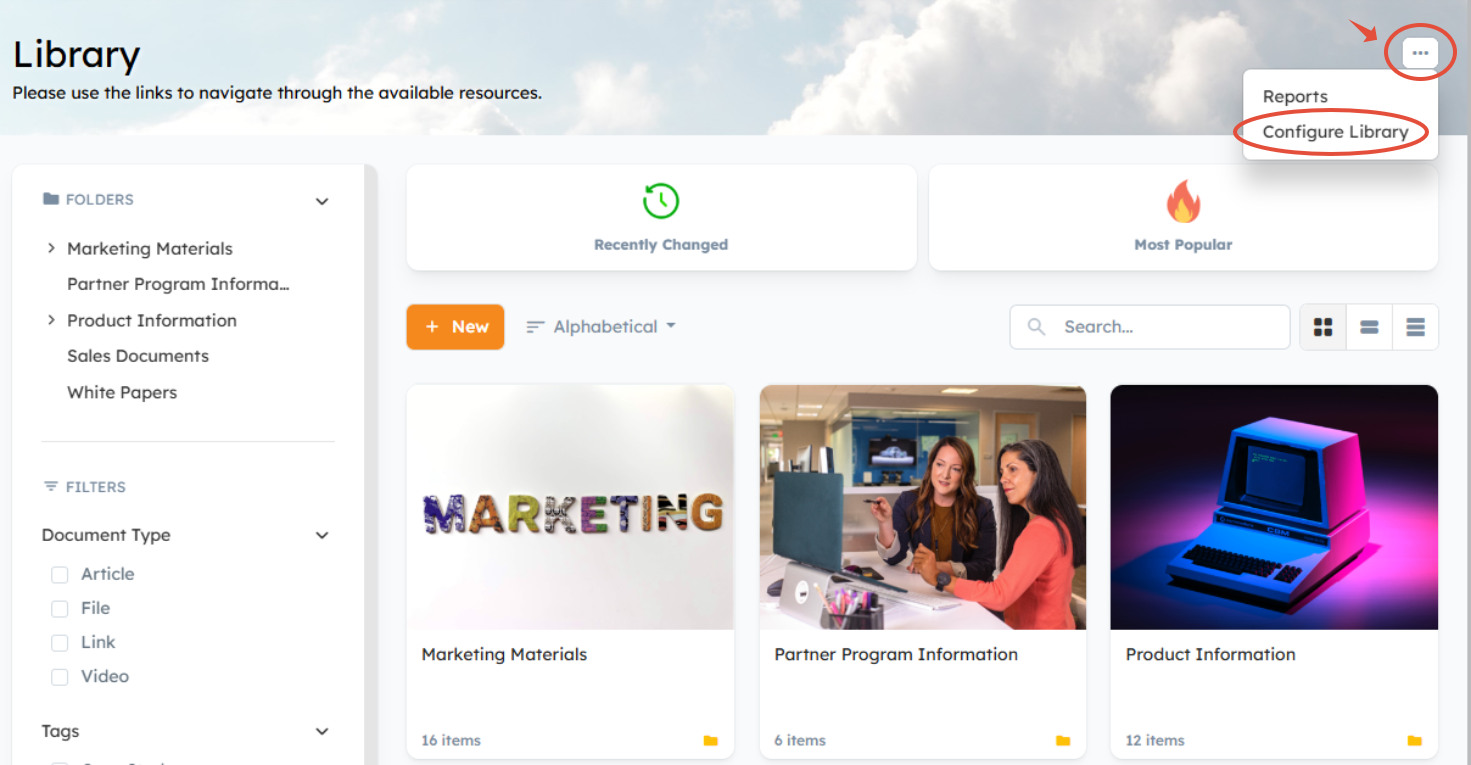
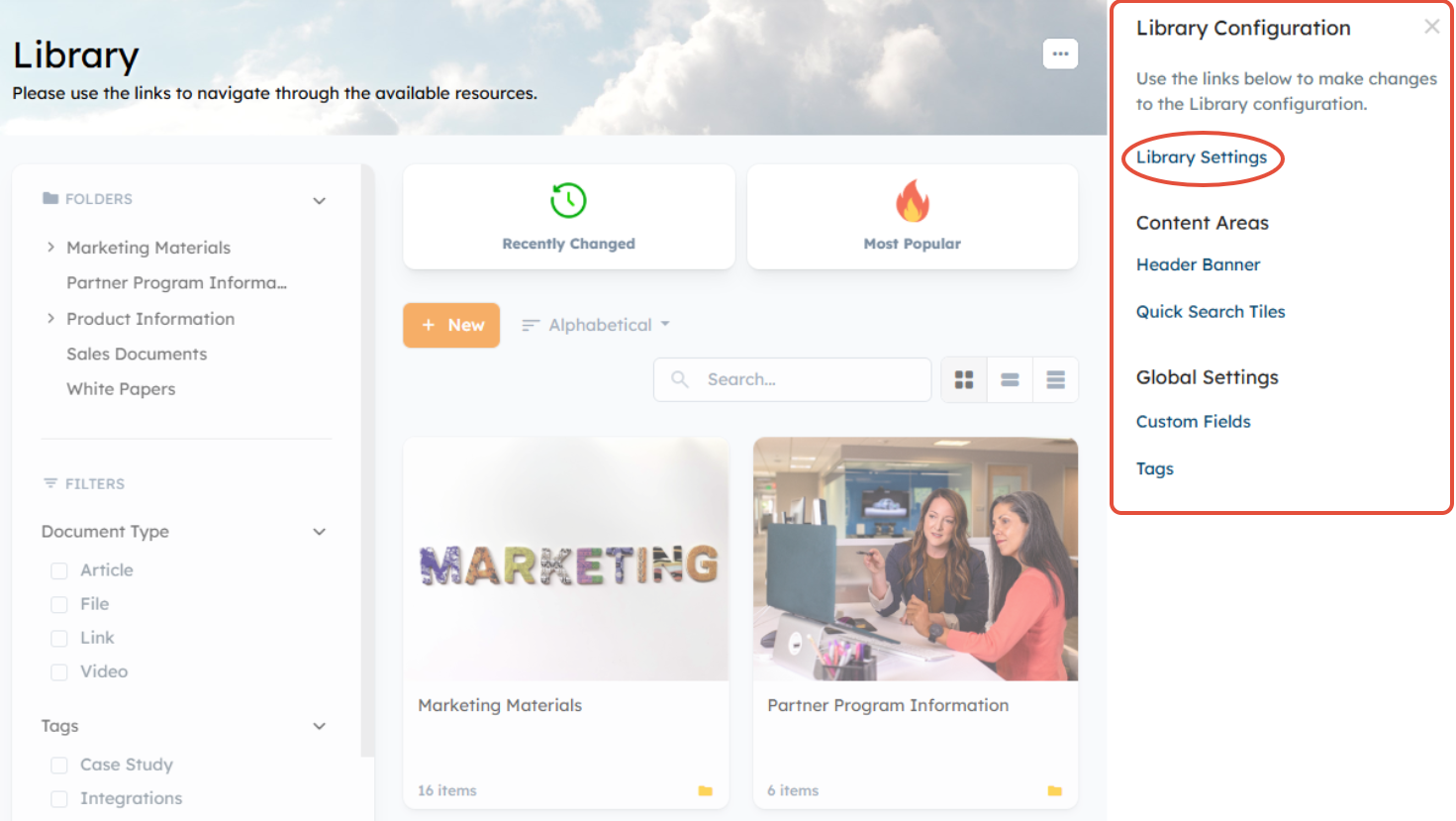
The Library Settings section allows you to configure and customize the Library's global default settings. It can be accessed from the Library Configuration menu by hovering your mouse over the header and clicking the ellipsis icon on the right > Configure Library > Library Settings.
Note: You can also access the Library's global default settings from the Navigation & Custom Pages settings area by going to Settings > Portal Customization > Navigation & Custom Pages. You'll then click the "Edit" button next to the Library to configure the below global default settings for the Library. 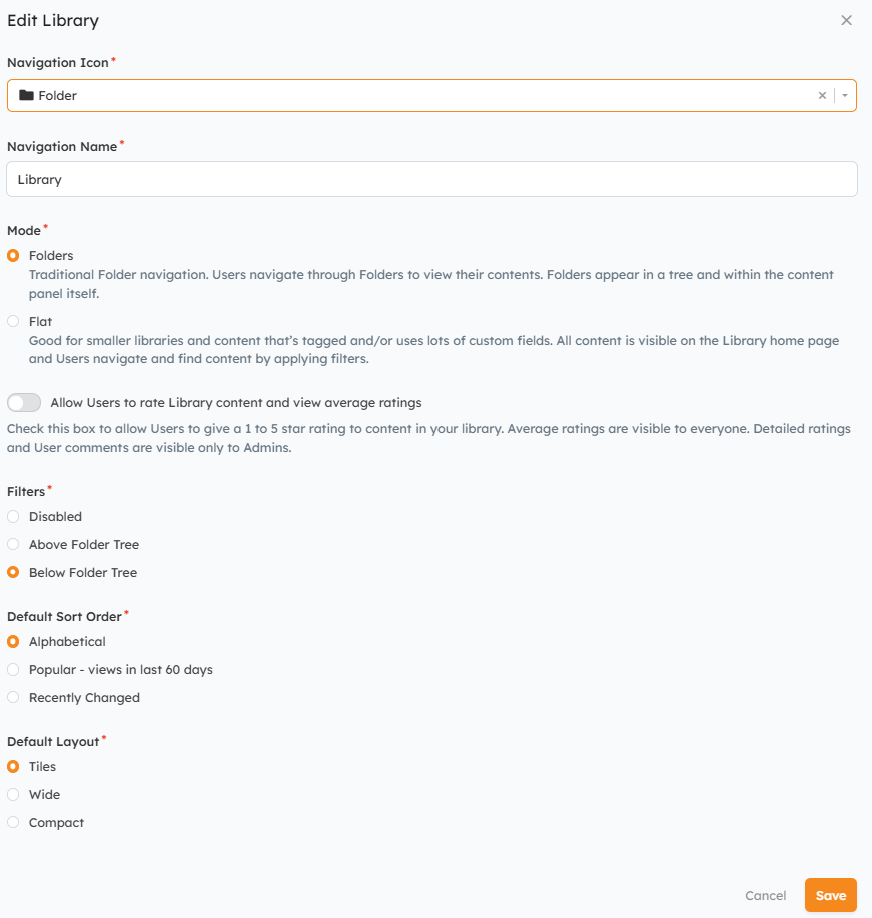
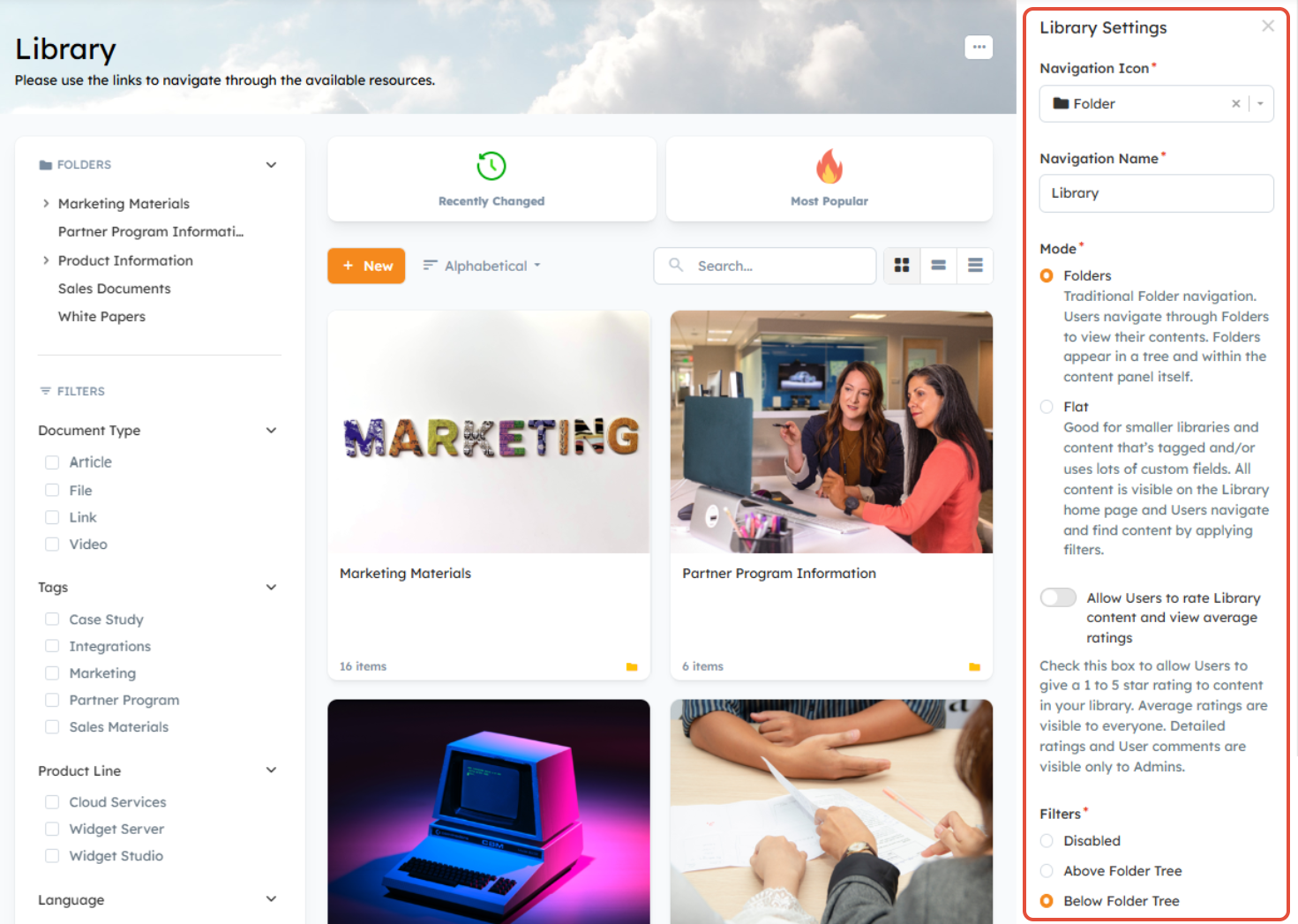
The Library Settings area allows you to edit and specify the following settings:
- Navigation Icon - designate an icon to represent the Library in the left navigation menu
- Navigation Name – The name you enter will appear in the left navigation menu for the Library.
- Mode – Choose between the following Library structures:
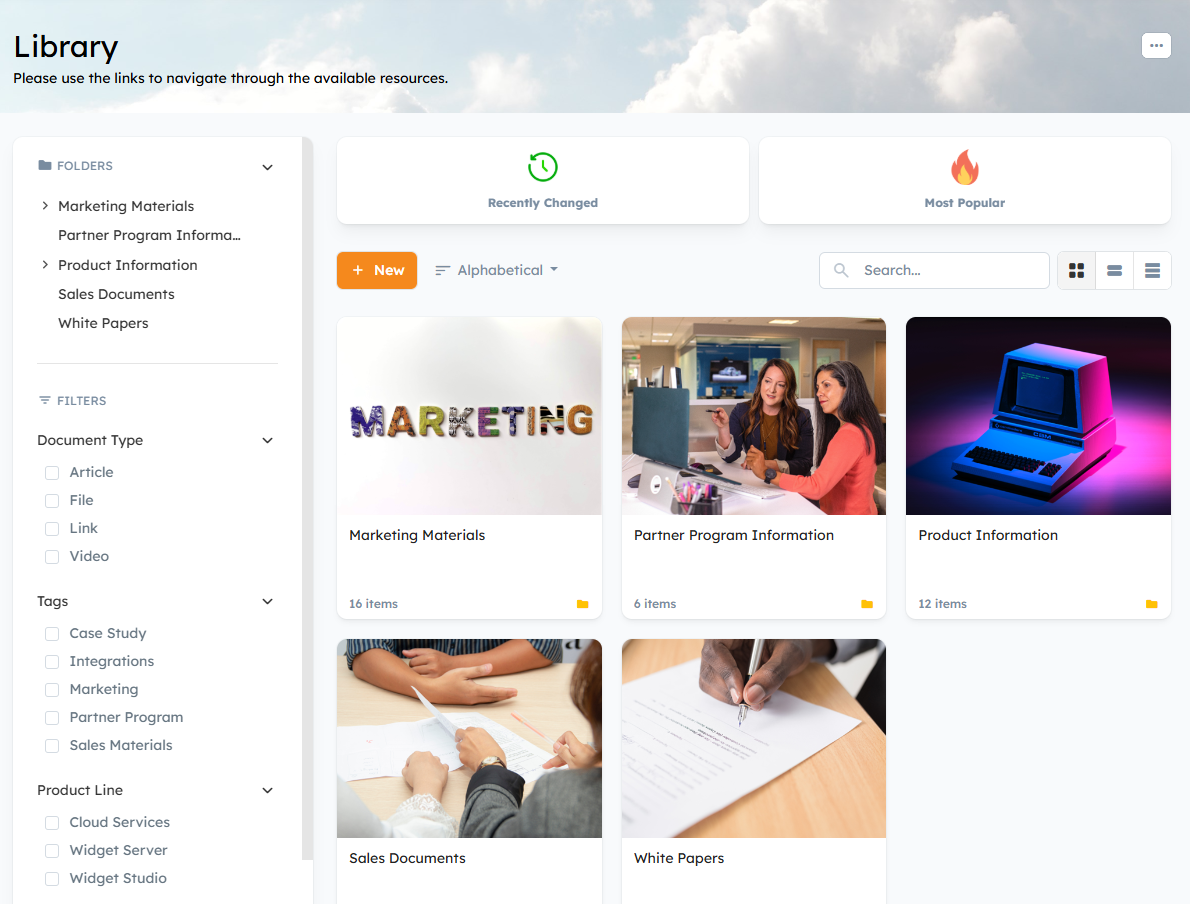
- Folders: Traditional Folder navigation. Allows you to organize and catalog content using a strict nested folder hierarchy. This option is best for programs with extensive content as it enables better organization using the Folder tree on the left. Please note that Folders will also appear within the content panel itself as long as the sort order is set to "Alphabetical".
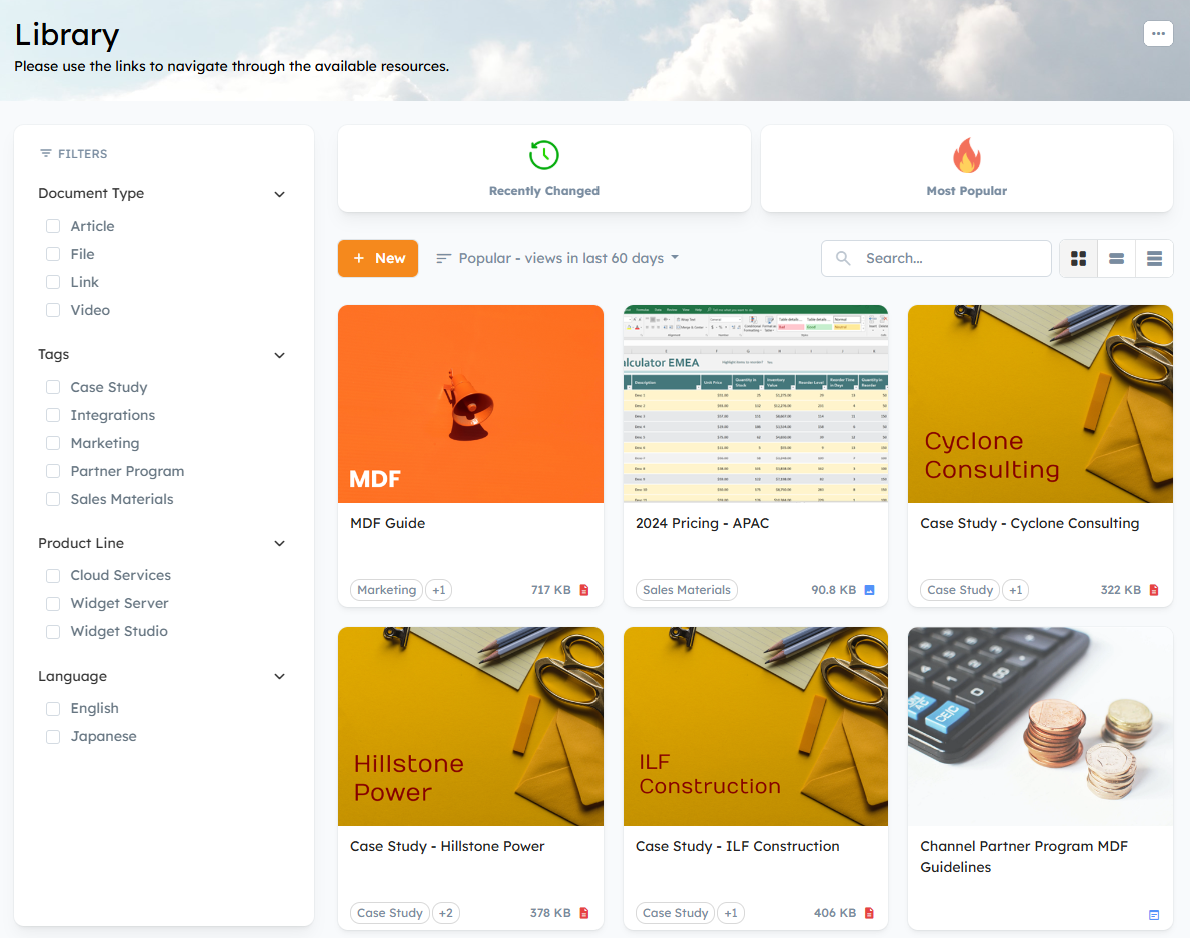
- Flat: Gives you the ability to display all library files on one page or within one folder. Users can search or use filters to find the content they need. This is the ideal option for less document-heavy programs.
- Folders: Traditional Folder navigation. Allows you to organize and catalog content using a strict nested folder hierarchy. This option is best for programs with extensive content as it enables better organization using the Folder tree on the left. Please note that Folders will also appear within the content panel itself as long as the sort order is set to "Alphabetical".
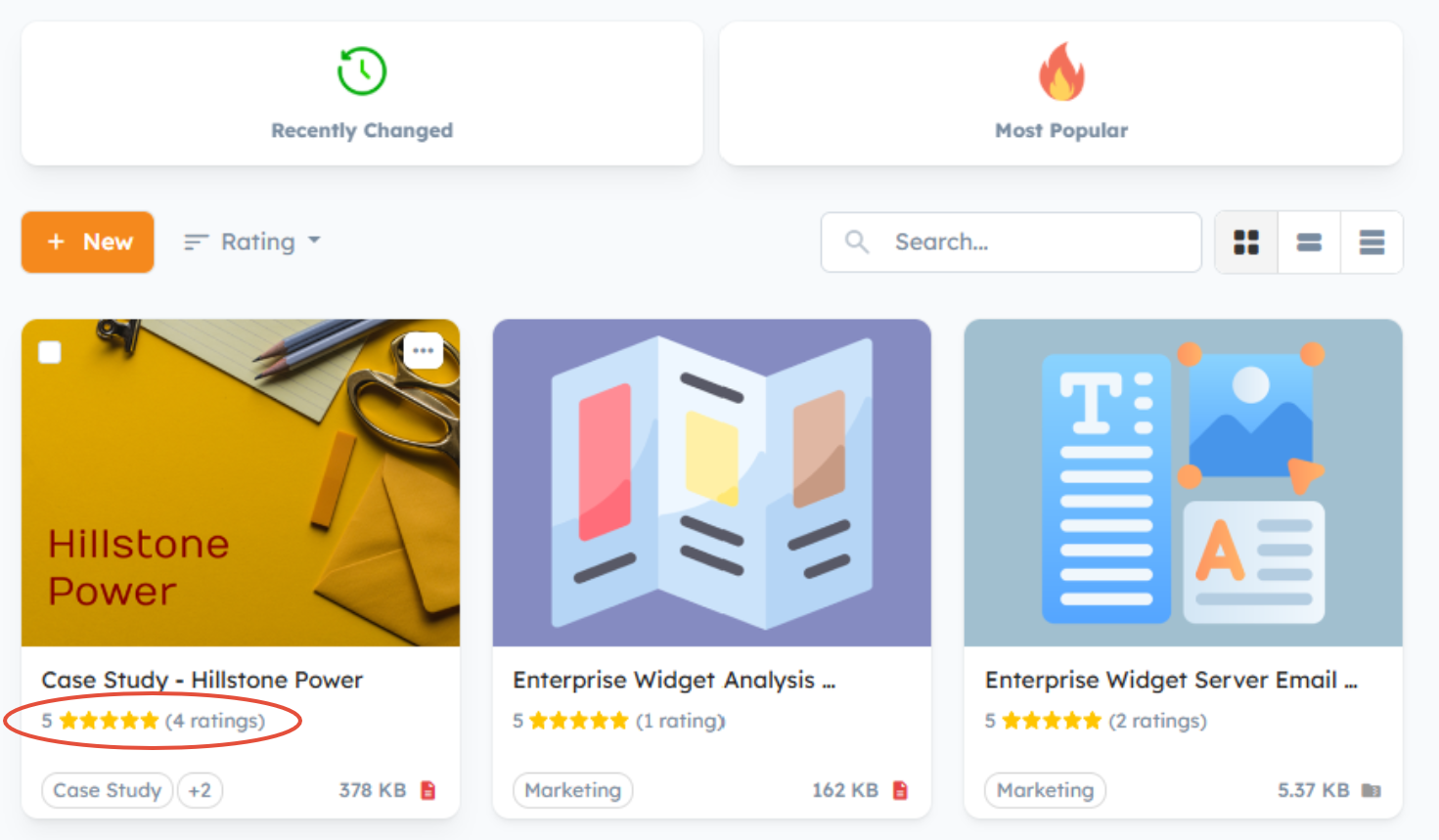
- Content Rating - With the Content Rating functionality enabled, Users can provide feedback by rating individual pieces of content on a numerical scale of 1-5 stars (e.g., 1 star for poor, 5 stars for excellent) as well as provide comments. These ratings collectively determine the Average Rating Score, which is displayed on the content's thumbnail image and is visible to all Users with access to that specific piece of material.
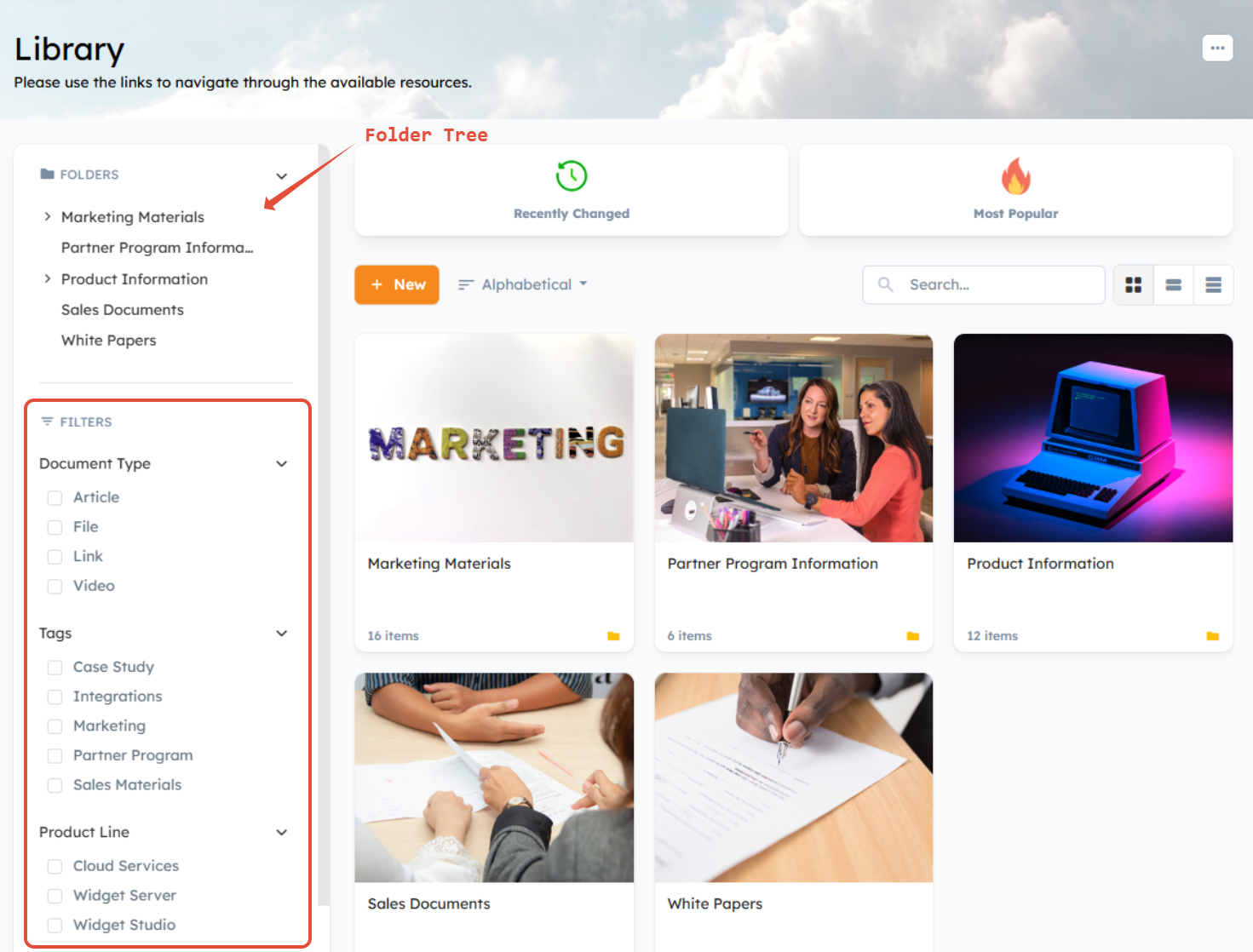
- Filters: Enable filters to allow users to filter content by type, Tags, and Custom Fields. We recommend only using Filters if you're using Tags or Document Custom Fields. When the Library is in Folder Mode, you can also specify the location of the filter menu that will appear in the Library’s left nav.
- Above Folder Tree
- Below Folder Tree
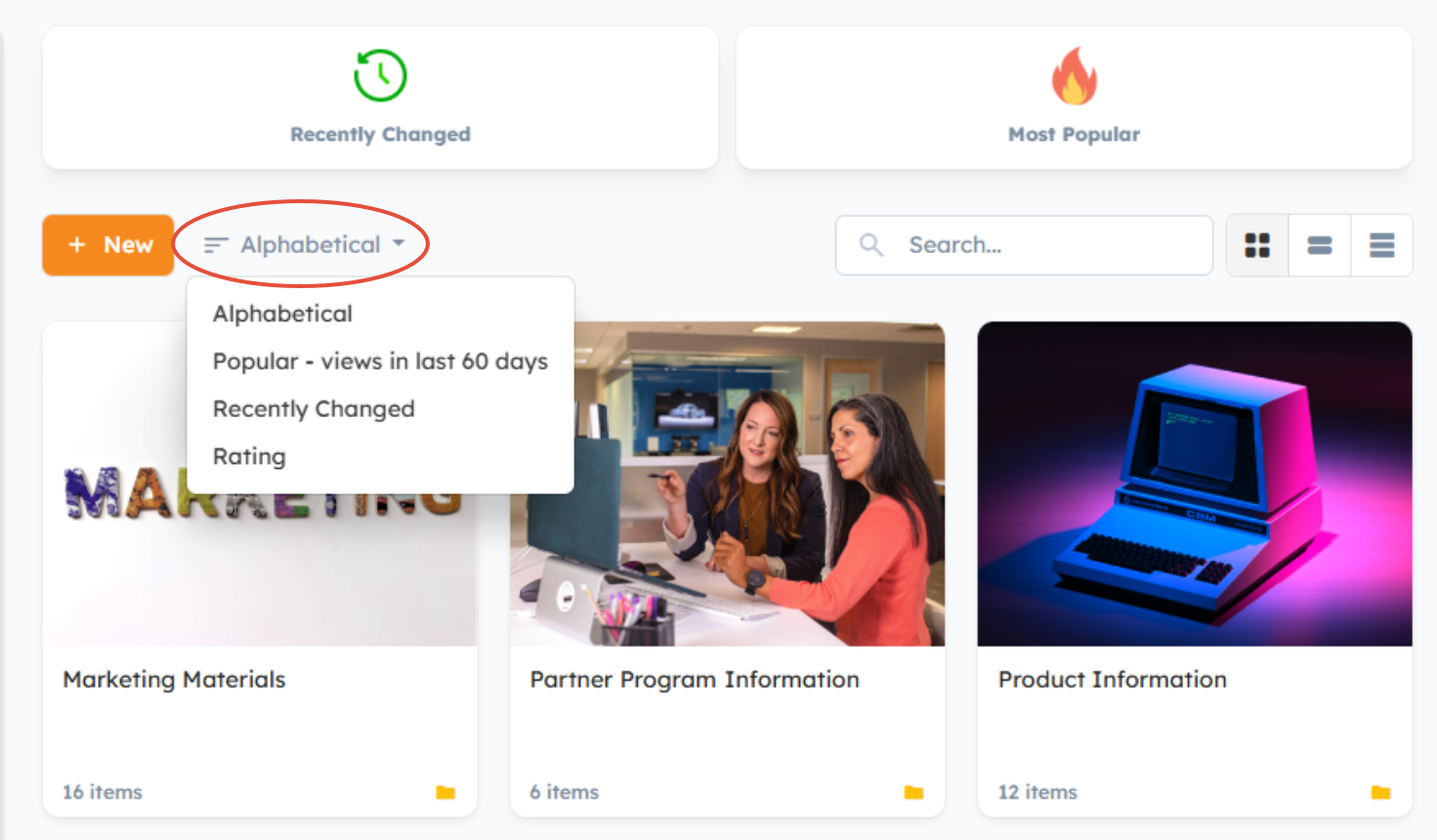
- Default Sort Order: Choose the global default sort order for Library content. Please note that users can change the sort order in their individual library settings at any time.
- Alphabetical (Folders only)
- Popular – views in the last 60 days
- Recently Changed
- Rating
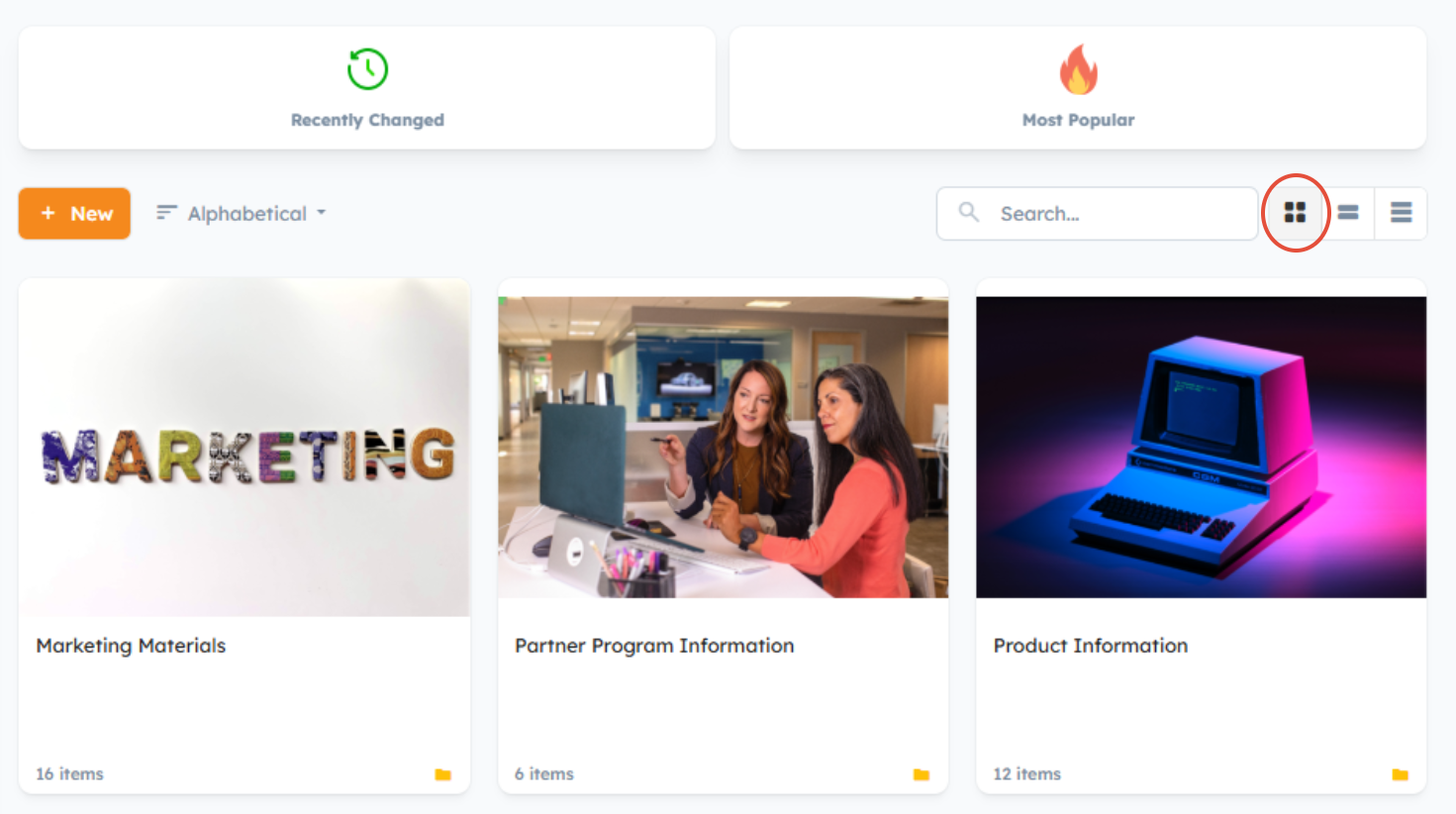
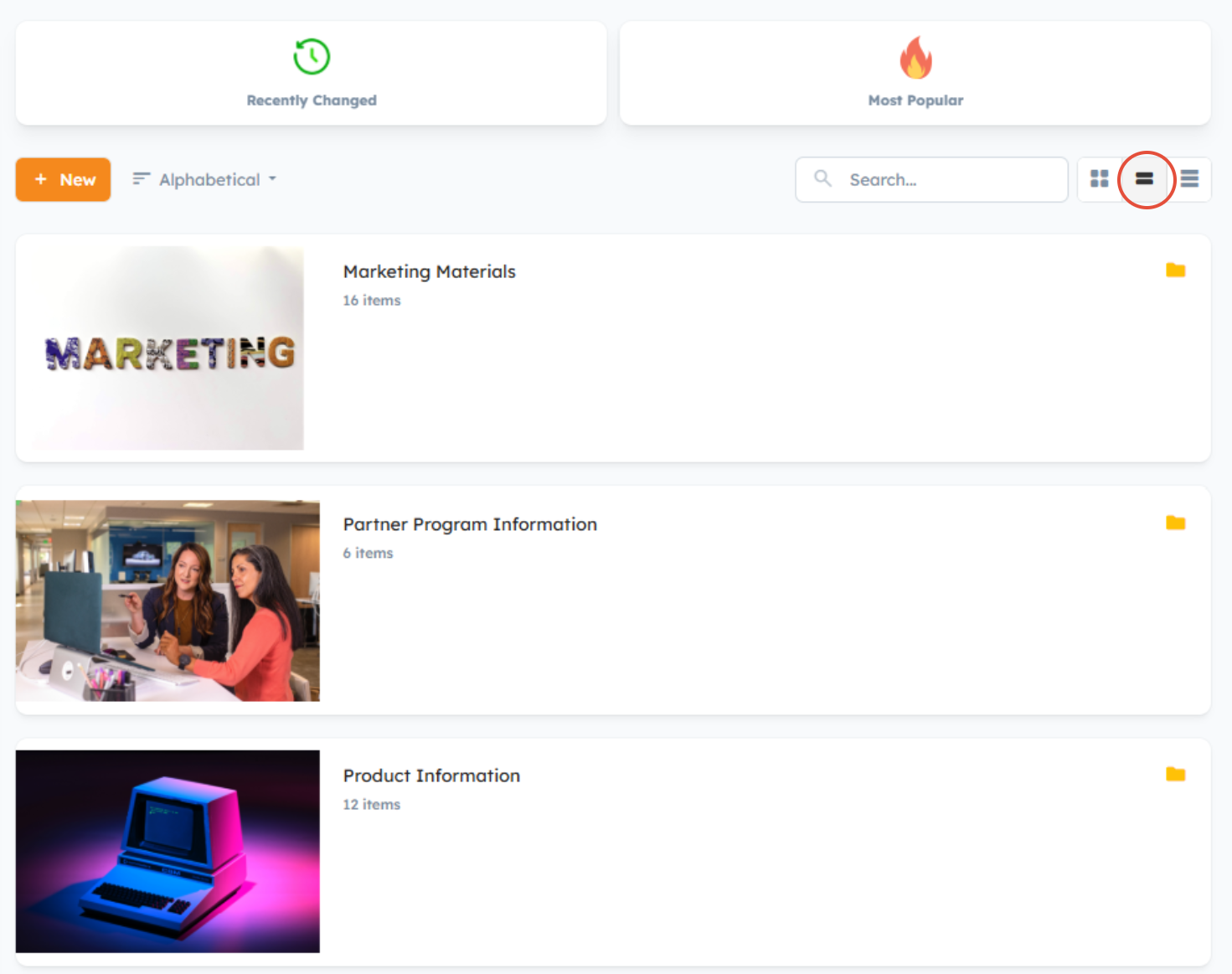
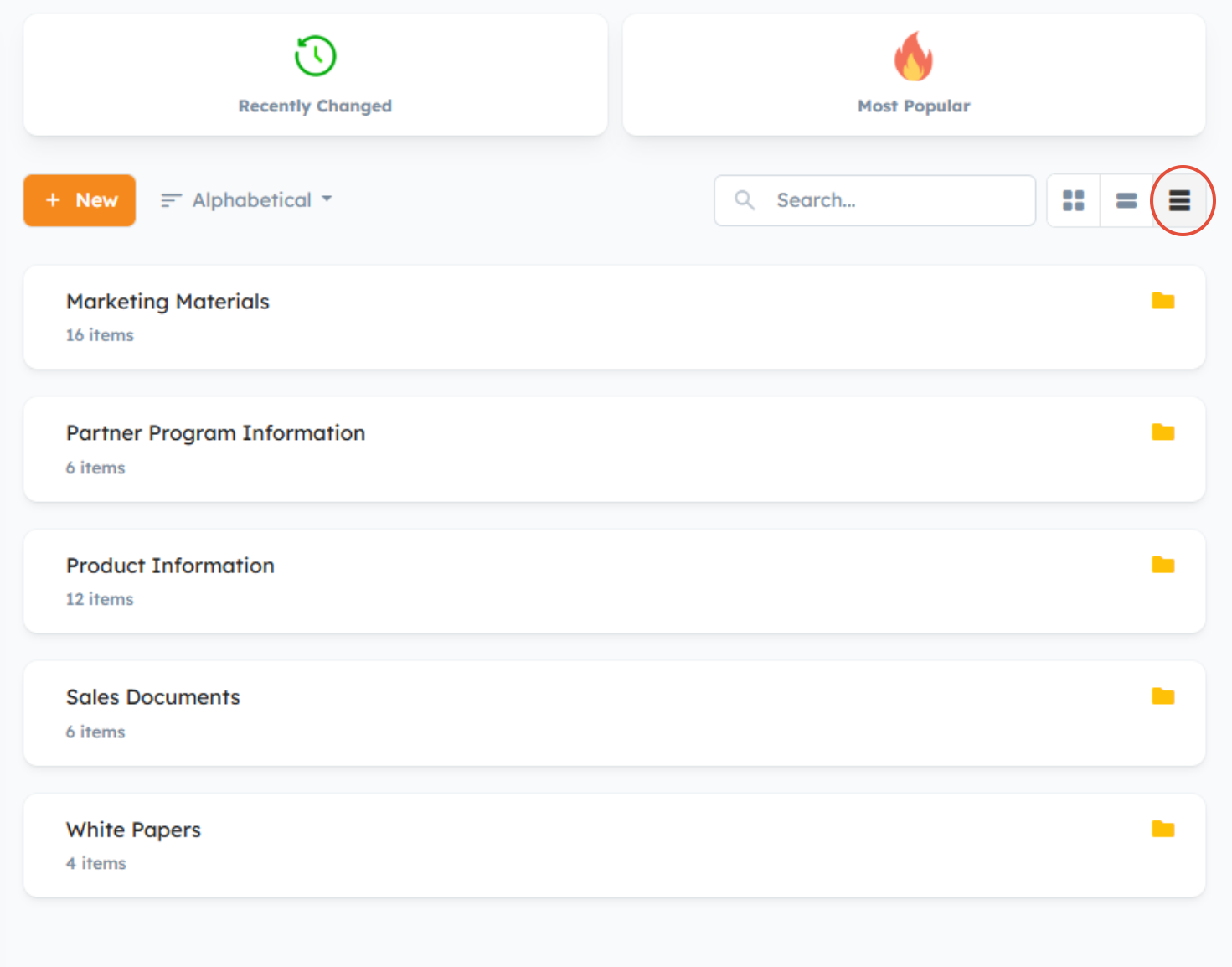
- Default Layout: Choose the global default layout for Library content. Please note that users can change the layout in their individual library settings at any time.
- Tile
- Wide
- Compact
- Tile
Related Articles
- Creating a Visually Engaging Partner Library, Step by Step
- Adding Folders and Uploading Content to the Library
- How do I upload preview thumbnails to the Library?
- Navigation & Custom Pages
Was this article helpful?
That’s Great!
Thank you for your feedback
Sorry! We couldn't be helpful
Thank you for your feedback
Feedback sent
We appreciate your effort and will try to fix the article